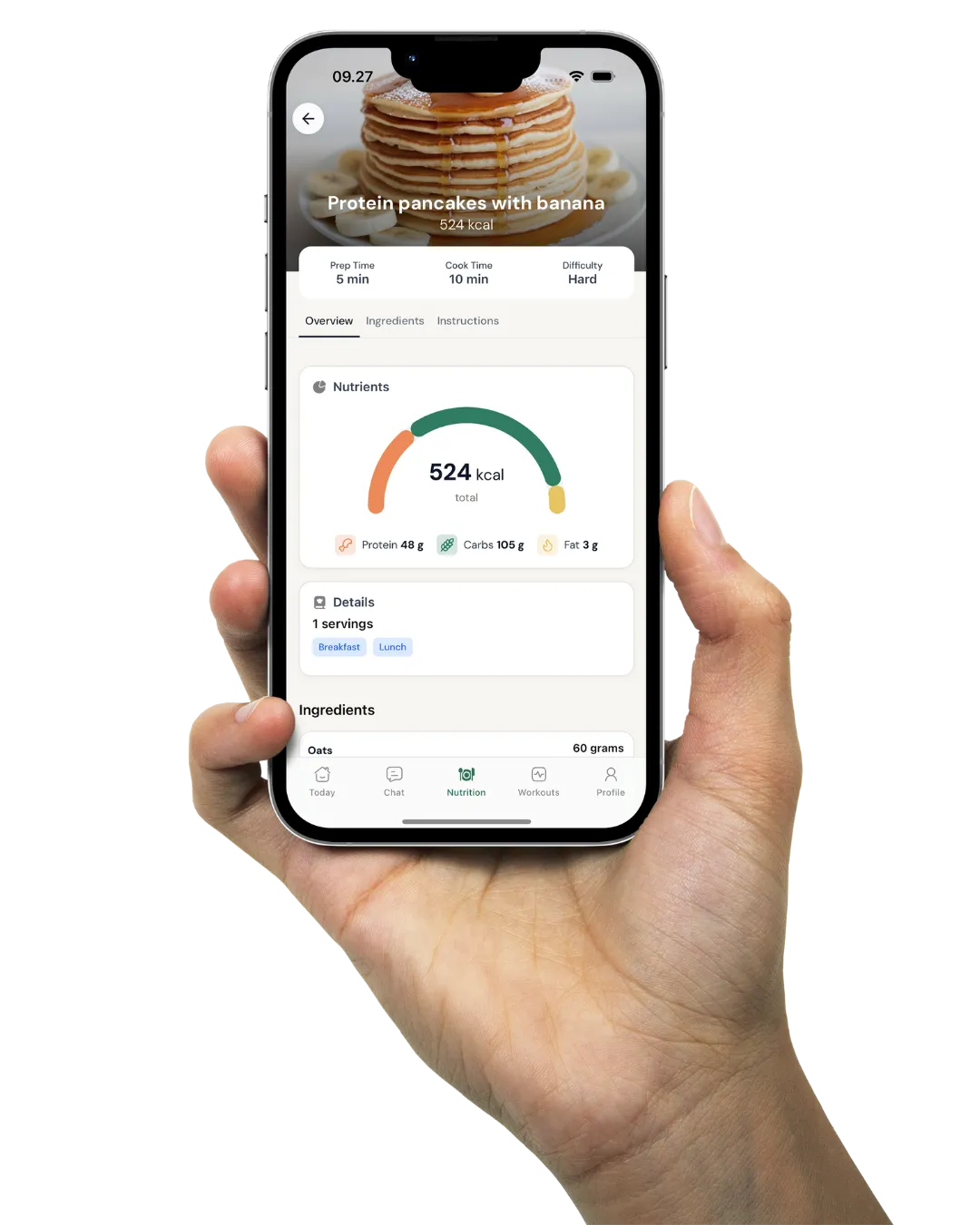
Client food logging with barcode scans, photo logs and AI estimates
Your clients log what they eat in the Coachway app: search, scan, snap or type it. You decide which of those tools each client gets, set the targets, and read every logged day on their profile.
In short
Clients log food in the Food tab of the Coachway client app: they search around 3.7 million foods, scan a barcode, snap a photo or type what they ate. For the clients you switch it on for, a photo or a typed meal becomes an AI estimate with a likely range, which they correct before adding. You set their targets and see every logged day against them.

How clients log
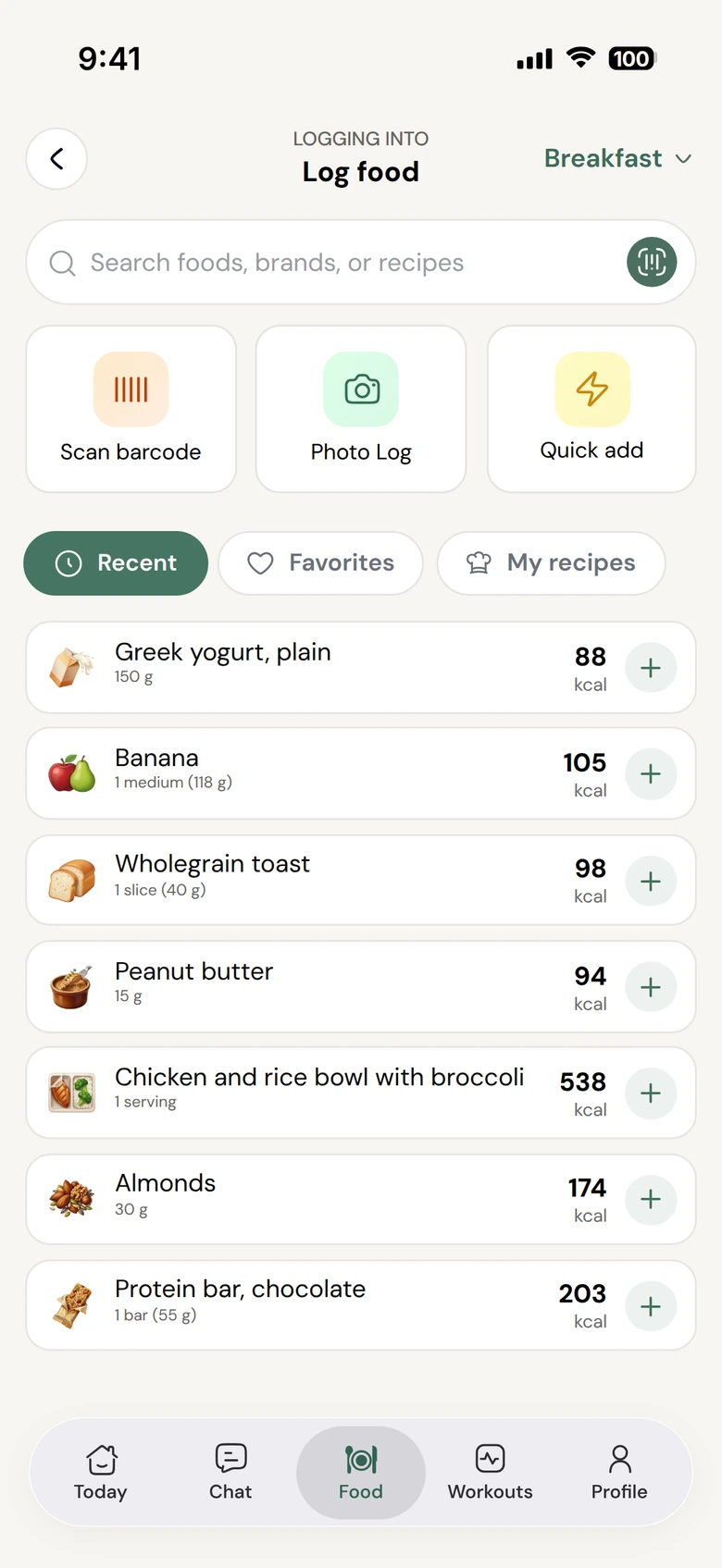
Search it, scan it or quick add it
From Log food a client searches foods, brands and their own recipes, then sets the amount in servings or grams and watches calories and macros update before adding it. Packaged food gets scanned. If a barcode is not in the database, an online lookup runs, and if that finds nothing the client photographs the nutrition label and the app fills in the values. Quick add covers the restaurant meal where only the numbers are known.

Snap a meal
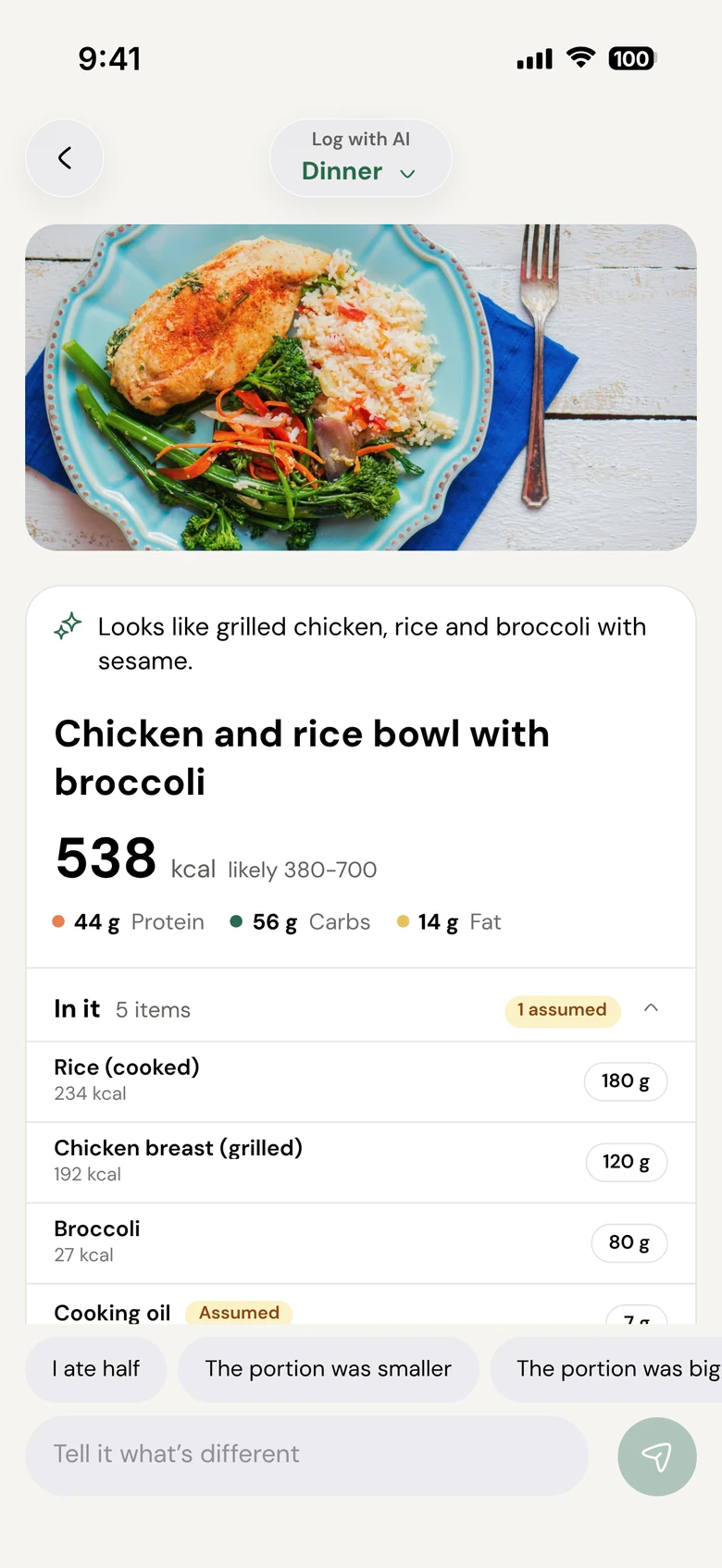
A photo becomes an estimate the client can correct
When you switch it on, a client photographs the plate and gets an AI estimate of calories and macros, split into the foods it sees with amounts and a likely range. They can change an amount, adjust counted pieces, or write a correction like 'no rice, more chicken' and get a new answer. Nothing is logged until they tap Add, and Undo is there if they change their mind.
Or describe it
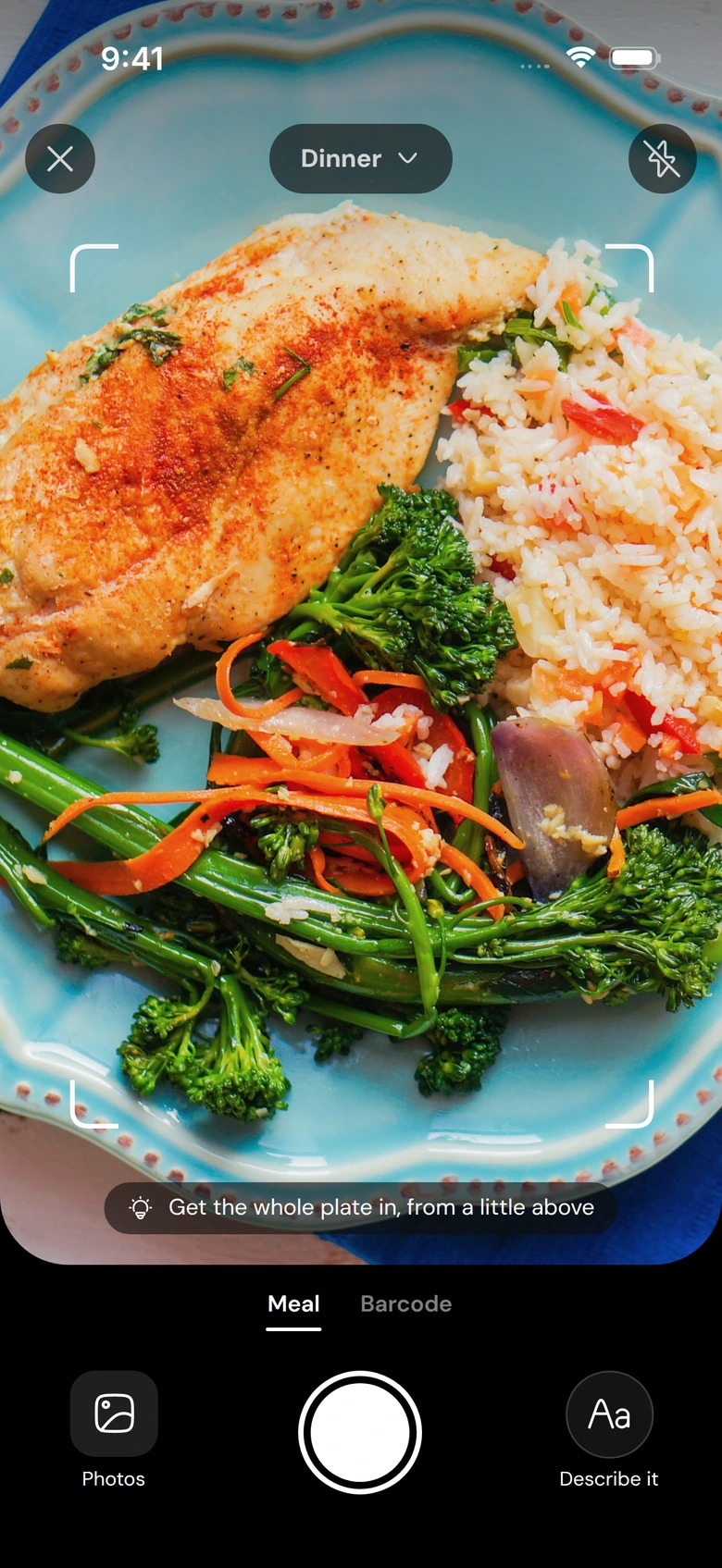
No photo? Type what you ate
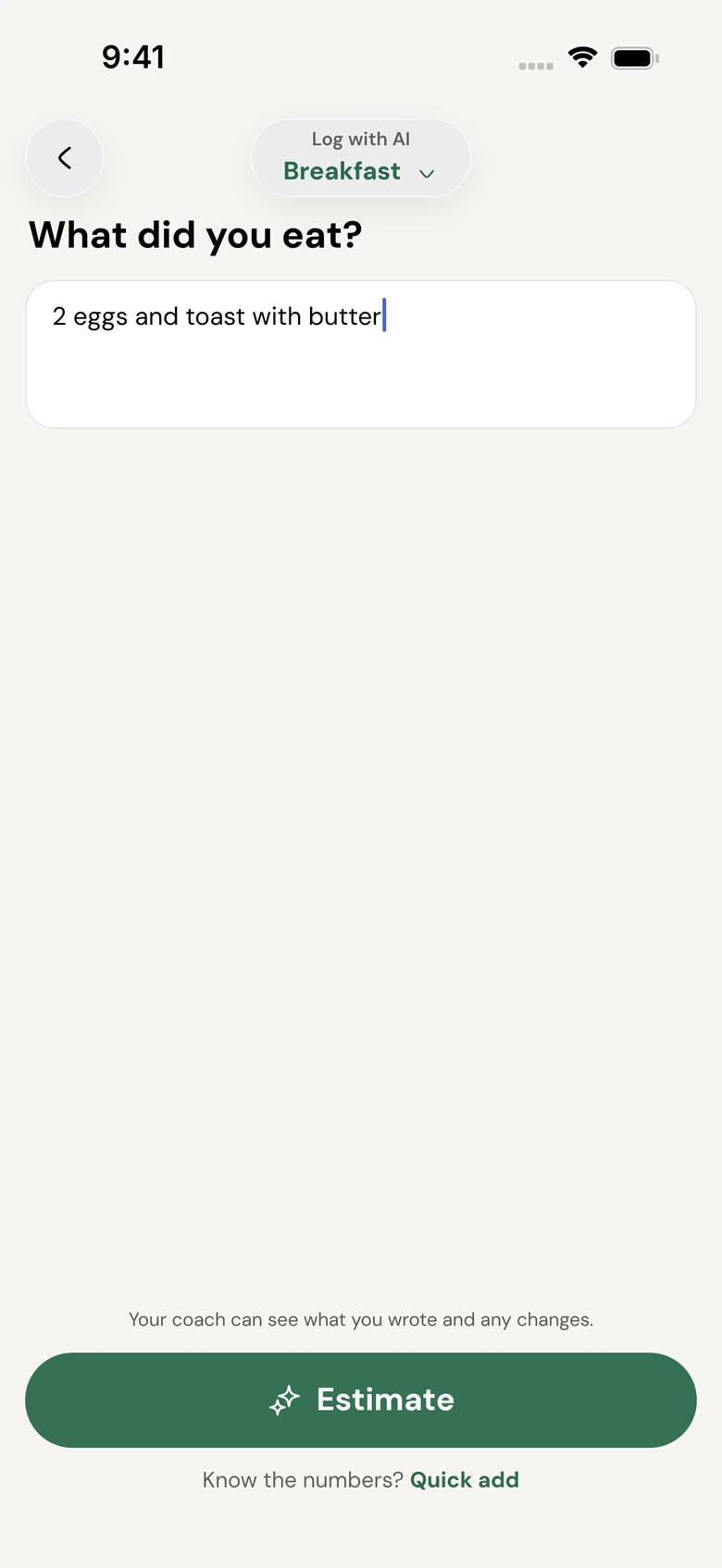
One camera handles meals and barcodes, with a tab for each. Next to the shutter sits Describe it, where the client writes something like "2 eggs and toast with butter" and taps Estimate. While they type, the app suggests their usual foods and the recipes from their meal plan, and those log as normal items.
You switch the two AI options on separately: "Also give AI estimates of calories and macros" sits under Photo logging, and "Also let them describe meals to the AI" sits under Food database search. AI on photos needs food database search to be on.

Your side
See what they ate, week by week
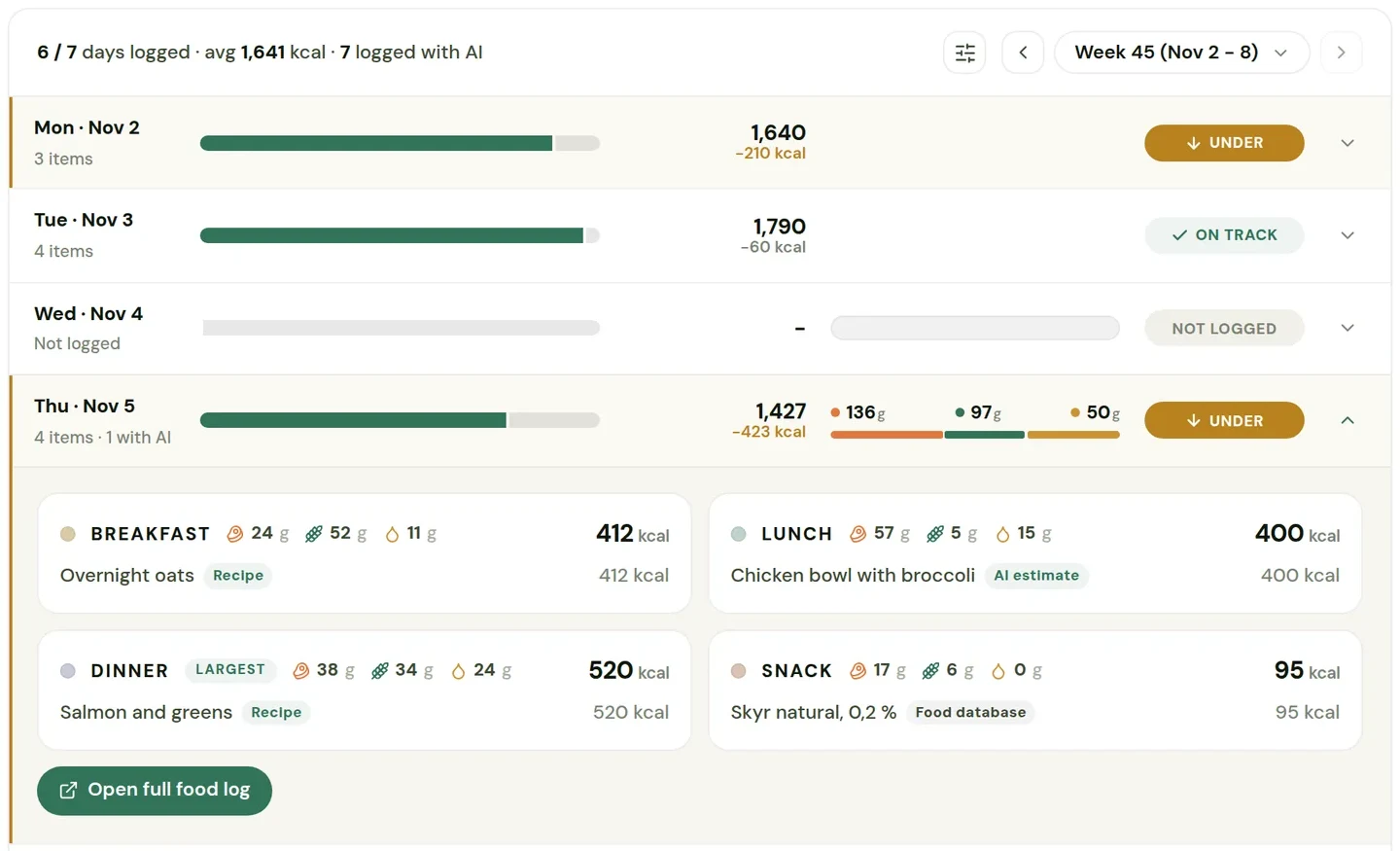
Every client's food log sits in the Nutrition card on their Development page. The week shows days logged, average intake on the days they logged, and each day against target as Under, On track, Over or Not logged. Click a day for its meals, or open the full food log to see every item with its portion and how it was logged: search, barcode, photo or recipe. Meals logged with AI carry an 'AI estimate' label you can click into.
Compared to the old way
One log instead of screenshots in the chat
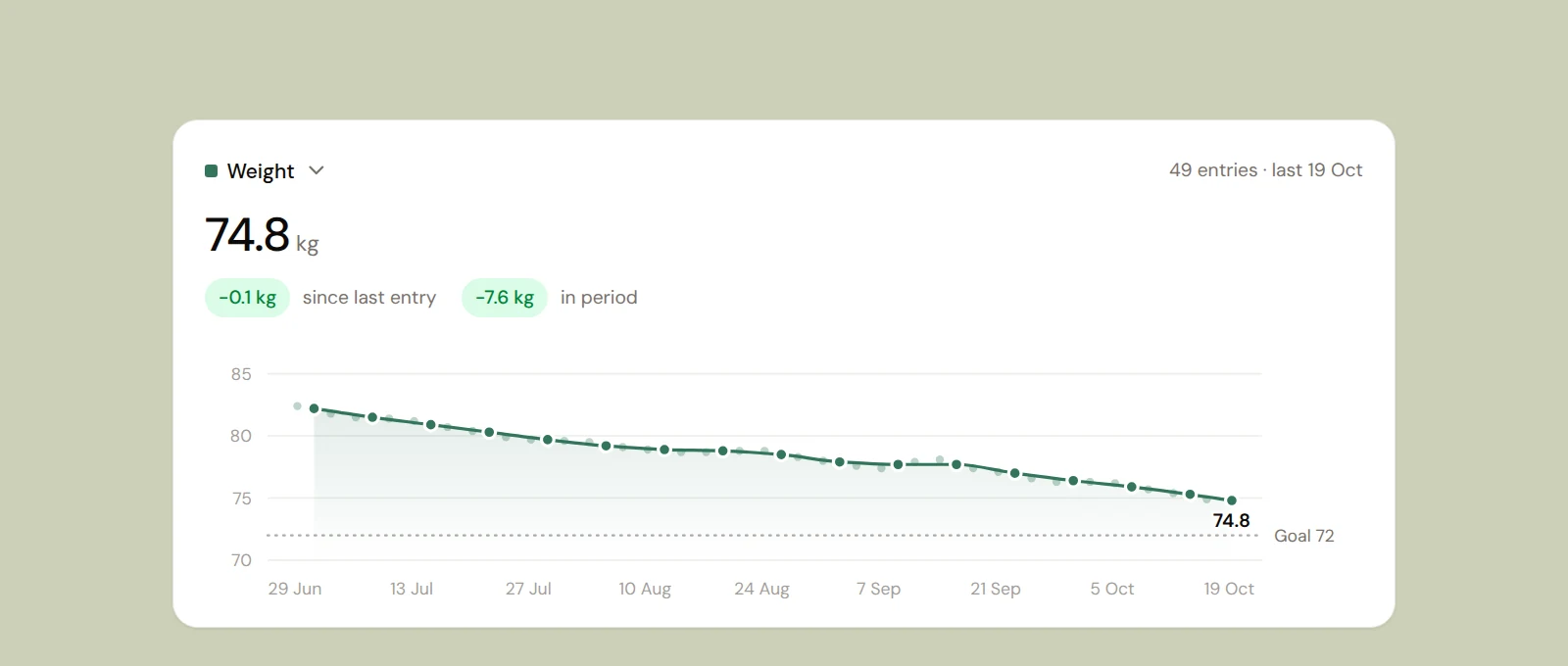
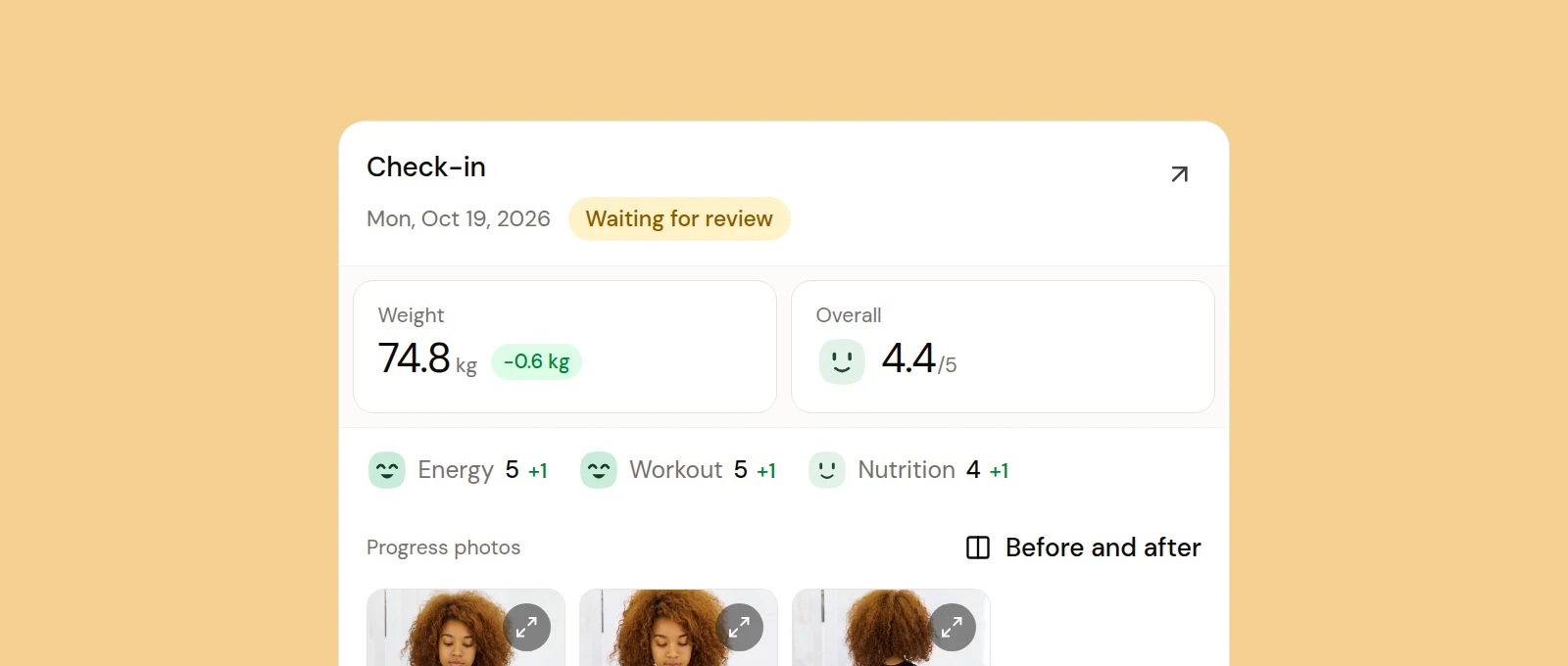
The usual setup is a separate calorie app on the client's phone, screenshots of the diary sent before the check-in, and targets you keep somewhere else. The clients who hate counting quietly stop. In Coachway the log, the targets, the meal plan and the chat are in the same place, and the client who should not count gets a photo diary instead of numbers. Their progress, weight and check-ins sit next to it in client progress.

You decide how each client tracks
One switch per tool, and four presets
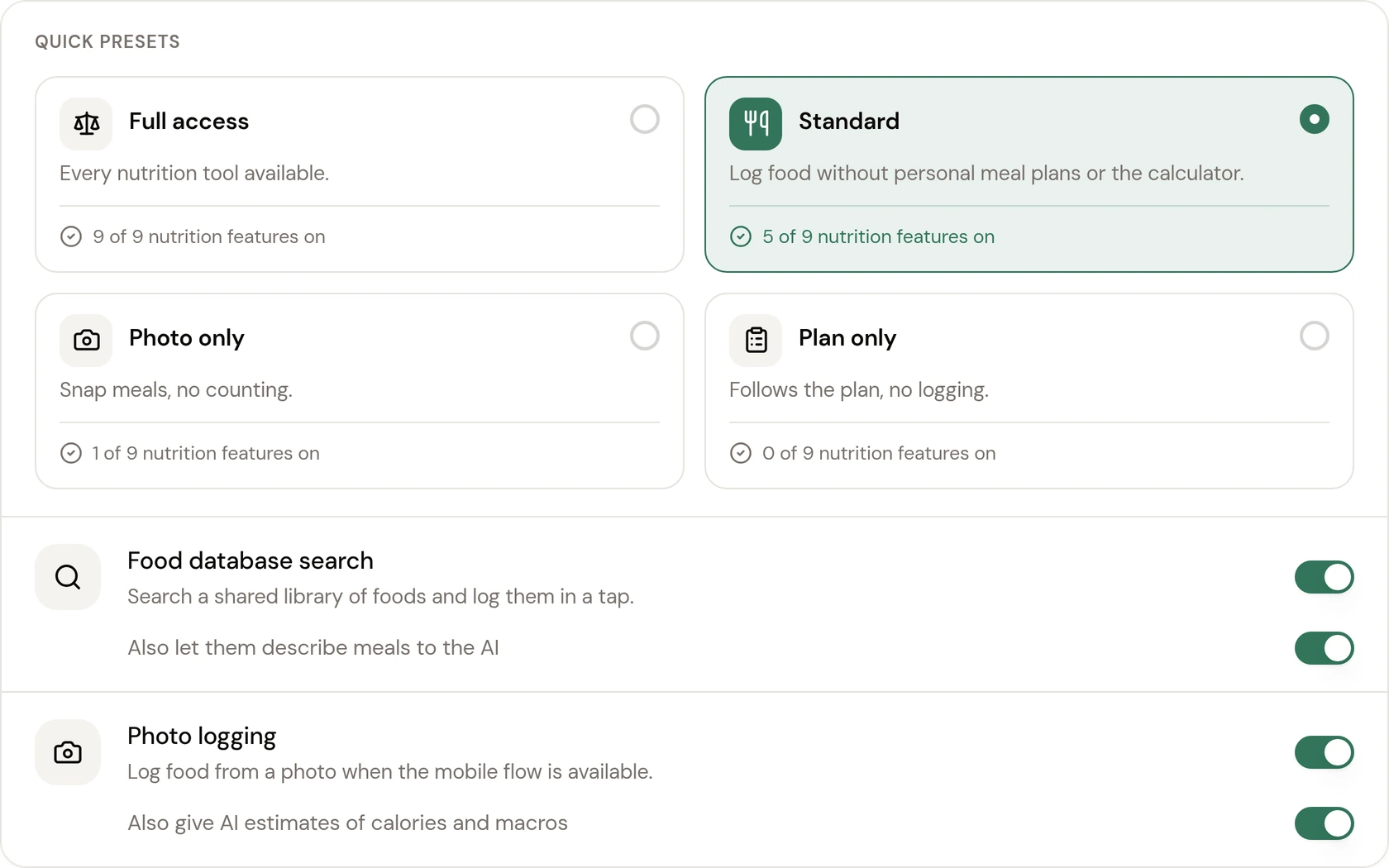
At the bottom of a client's Settings and Nutrition you switch each tool on or off: food database search, barcode scanning, photo logging, custom recipes, personal meal plans, the calorie calculator and nutrition visibility, with the two AI options under search and photos. Start from a preset and fine-tune. A live preview of the client app updates as you go, and you can set the same choices as the default for new clients.
What the log measures against
Targets that fit the week, numbers only where they help
Targets live in the client's Settings and Nutrition, separate from any meal plan. The BMR and TDEE in the client's Info panel are a suggestion to start from. Clients who want to work out their own starting point can use the calorie calculator when you allow it.
Weekly targets
Same every day, or vary by weekday so training days and rest days get different numbers. Protein, carbs and fat in grams or percent, energy in kcal.
Date exceptions
Change the target for one date, such as a holiday, a travel day or a deload day, without touching the weekly baseline. Upcoming differences shows what each exception changes.
Nutrition visibility
Pick what the client's Food tab shows. Logging and scanning keep working either way.
Ways coaches use it
A different setup for each kind of client
The macro client
Full access: search, barcode, recipes and the rings. You set protein, carbs and fat per weekday and read the week on their profile before the check-in.
The client who should not count
Photo only. They snap the plate and add a note, the photos land in a Photo Log tab in your chat, and nobody looks at a number.
The plan follower
Plan only. They see the meal plan you built and have no logging tools, which suits clients who want to be told what to eat.
The client who eats out a lot
Switch on AI estimates and they can photograph a restaurant plate or type what they had, then adjust the estimate before it goes in the log.
Training days and rest days
Weekly targets that vary by weekday, so a heavy leg day and a rest day are measured against different numbers.
The holiday week
Mark a date exception for the birthday, the trip or the deload day. The weekly baseline stays as it is.
Food logging sits in the same client app as training and chat. Clients log recipes from your plan with Log this meal, can build their own meal plans when you allow it, browse your cookbooks, and turn recipes into a shopping list. For the launch tour, see Nutrition 2.0.
Everything food logging can do
See all featuresLog a meal yourself before your clients do
Start a trial, add a test client and try search, the barcode scanner and the presets from the client's side and yours.
What coaches ask about food logging
Where do I see what my client logged?
Open the client, go to Development and scroll to the Nutrition card. It shows one week at a time with days logged, average intake on logged days and each day against target as Under, On track, Over or Not logged. Click a day to see its meals, or Open full food log for every item with its portion and an icon for how it was logged.
How many foods are in the database?
Around 3.7 million foods, brands and products in a shared database that is updated frequently. Clients search it by name, and their own recipes show up in the same search. They log in servings or grams, and grams are always available.
What happens if a barcode cannot be found?
If the product is not in the Coachway database, the app runs an online barcode lookup, and an exact match is saved so the next client finds it. If that also comes up empty, the client can photograph the nutrition label and the app fills in the values. After automatic checks the item is added to the shared database, linked to the barcode.
What if a scanned product shows the wrong values?
The client logs it with Quick add using the numbers on the package, so the day is correct. To fix the product for everyone, send Coachway the barcode and a photo of the package in the chat and it is corrected in the database.
How do AI meal estimates work, and who gets them?
The client photographs a meal or describes it in words and gets an estimate of calories and macros, split into foods with amounts and a likely range. They adjust it and tap Add to put it in a meal. You choose which clients get it under the client's Settings and Nutrition, or in your account defaults, with up to 20 estimates per client per day.
Can I see which meals were estimated by AI?
Yes. On the client's Development page those meals carry an "AI estimate" label, and a click shows the photo, the range, the foods, what was assumed and the client's corrections. You see nothing until the client taps Add.
Does a photo log count calories?
Not on its own. A Photo Log entry is a meal photo with a note, and you see them in a Photo Log tab in the client's chat. If you want numbers too, switch on AI estimates for that client's photos.
Can clients log food without seeing calories?
Yes. Under Nutrition visibility you choose Calories and macros, Calories only, Macros only or Amounts only for each client. Logging and barcode scanning keep working whatever they see.
Why are my client's nutrition rings not filling?
An assigned meal plan does not set the targets the app measures against. Open the client, go to Settings and Nutrition, enter protein, carbs, fat and calories under Weekly targets and click Save plan. The rings fill from there as food is logged.
Can clients copy a meal from yesterday?
Yes. When a meal is still empty and the same meal was logged yesterday, the app suggests adding it with one tap. Clients can also copy any logged meal to a date they pick from the meal's menu.
Articles & guides
all guidesBest Calorie Tracking Apps for Coaching Clients (2026)
Five calorie trackers compared from the coach chair, not the app-store shelf - the one feature consumer lists never rank is whether you can actually see the client log.
Read the guideHow to Coach Nutrition Clients Without Calorie Counting
Not every client should count calories, and for some it does harm. How to coach nutrition with no numbers (set plan, habits, hand-portions, photo check-ins), the per-client access setting that makes it practical, and the clinical line a coach must not cross.
Read the guideHow to Set a Calorie Target for a Client (2026 Method)
How to set a client's calorie target: pick the starting number and deficit size from goal, rate of loss, activity and adherence history, then adjust it from two to three weeks of real weight and check-in data. The methodology behind the number, not just the calculator. General information, not medical or dietetic advice.
Read the guideKeep exploring
Explore more features
Meal planner
Build meal plans from 1,100+ recipes or your own, with every recipe scaled to the meal's calorie and macro target.
Client progress
Weight, measurements, photos and workouts on one page, with charts that show change over time.
Check-ins & forms
Onboarding and weekly check-in forms you build yourself, with skips for holidays and a first check-in date.
See what Coachway can do for your coaching business
Coachway was built on knowledge from working with 150 online coaches over 6+ years, who all hit the same wall - slow platforms, clunky workflows, wasted hours. Start your 14-day free trial and see what we fixed - the whole platform, no charge today, cancel anytime under Billing.