Pause, end and keep track of every client
Give a client a break with a set return date and their invoices and automations move along. Decide what happens to their app access when they end, and see who changed what on each client in one log.
In short
In Coachway every client is Pending, Active, Paused or Ended, and you change that from the status menu on the client. A pause has a start and a Back on date, and the client's scheduled invoices and automations move with it. You decide what happens to app access when a client ends, every change shows in the client's activity log, and you can invite up to 25 clients at once.

Pause and resume
Pause a client without losing track
Holiday, injury or a busy month: choose Pause from the status menu, start it today or on a later date, and pick the day they are back on. Payments are moved, not stopped. On an Ongoing plan the paused months are skipped, on a Set months plan they are added to the end. Automations send nothing until the client is back, then carry on from where they stopped. On the Back on date the client returns to Active by themselves.

When a client ends
Decide what happens to app access
Set one rule for every client you end: revoke access straight away, keep it for a grace period of days you choose, or keep it indefinitely. Change it for one client from their Payment tab, where you end access now or on a date, or grant it again with or without an end date. Access, payments and coaching status are kept apart, so cancelling a plan does not lock anyone out and ending access does not stop a payment.

Client history
See who changed what, and when
Every client has a full activity log from the day they were created: emails sent, meal plan and workout changes, updated info, app logins, check-ins, paid invoices and status changes. Each entry names the team member who made it, and an activation that came from a payment or onboarding is shown as such instead of as manual. On a team, nobody has to ask who paused a client or swapped their plan.

The client list
Know when every coaching period ends
Give each client a coaching period when you add them and change it later on their Overview with a timeline that shows the weeks. The end date sits in the Duration column, and the Ending soon filter lists clients whose period ends soon as well as clients whose payments stop soon, so the renewal talk happens in time. The period is for your planning only and never changes what the client pays. Select several clients and the bottom bar lets you broadcast, retry charging, assign an automation, assign a coach or add tags.
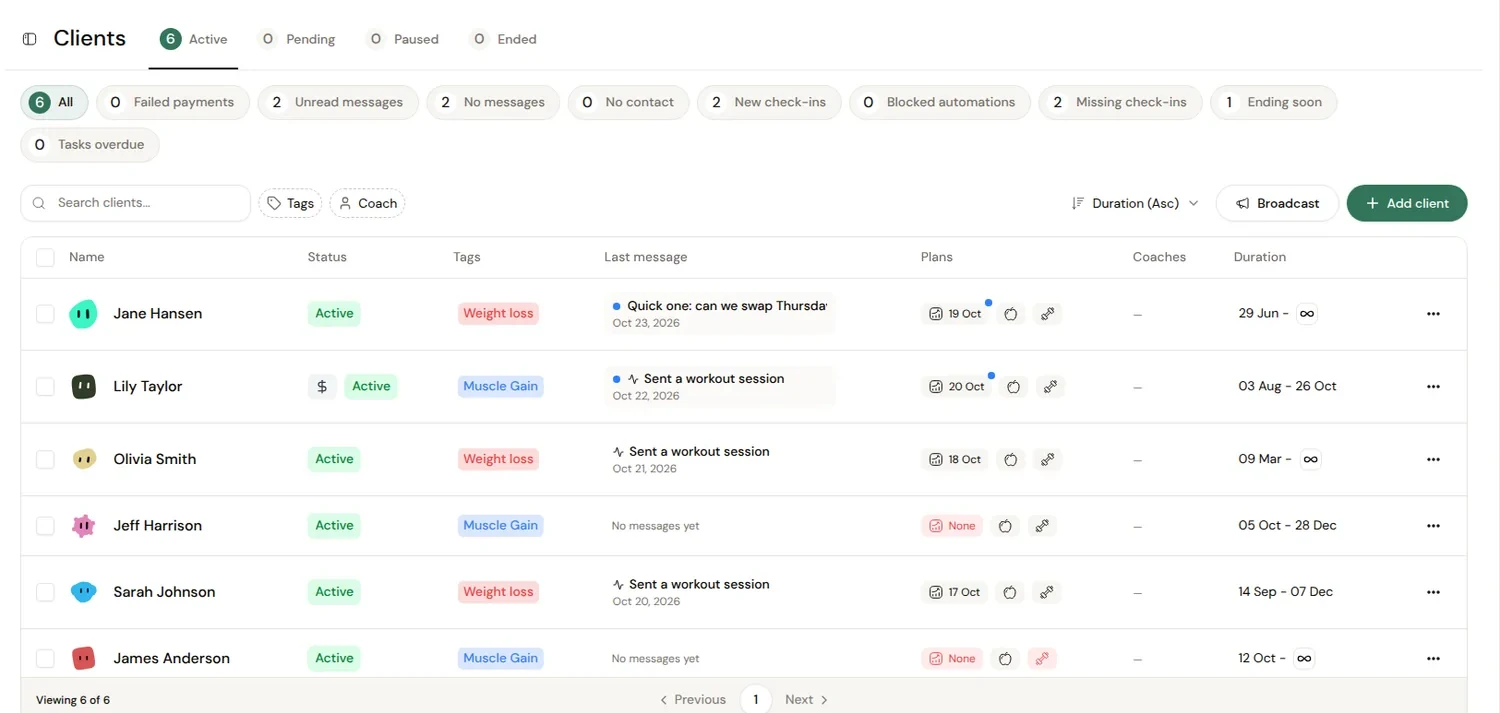
The Clients page with demo clients: status tabs with counts, the filters, Tags and Coach, and the Duration column. On a phone, swipe sideways to see all of it.
Add a client
One flow from details to the first invite
Click Add client and work through four steps. Nothing is sent to the client until you click Create client.
Step 1
Details
Name, email, country and language, the coaching period and, on a team, which coach the client belongs to. You can create a new tag right here.
Step 2
Templates
The onboarding and check-in forms, check-in reminders, the welcome email and any automations this client should get.
Step 3
Membership
Pick a product and change price, start fee or commitment for this client only. Choose No product if they pay outside Coachway. More on payments.
Step 4
Overview
Check the first charge and the terms exactly as the client will see them, edit any section, then create the client.
The client gets one link to set up their account and, if you added a product, accept the offer and add a card. If the email ends up in spam, copy their personal link from Settings, Access. Programs and meal plans you prepare while the client is Pending go live the moment you activate them, built in the workout builder and meal planner; you can switch that off in your account settings. Bringing a group over? Invite up to 25 clients in one go, and read how a move from another platform works, since it depends on your platform.
Calendar overview
Every client date on one calendar
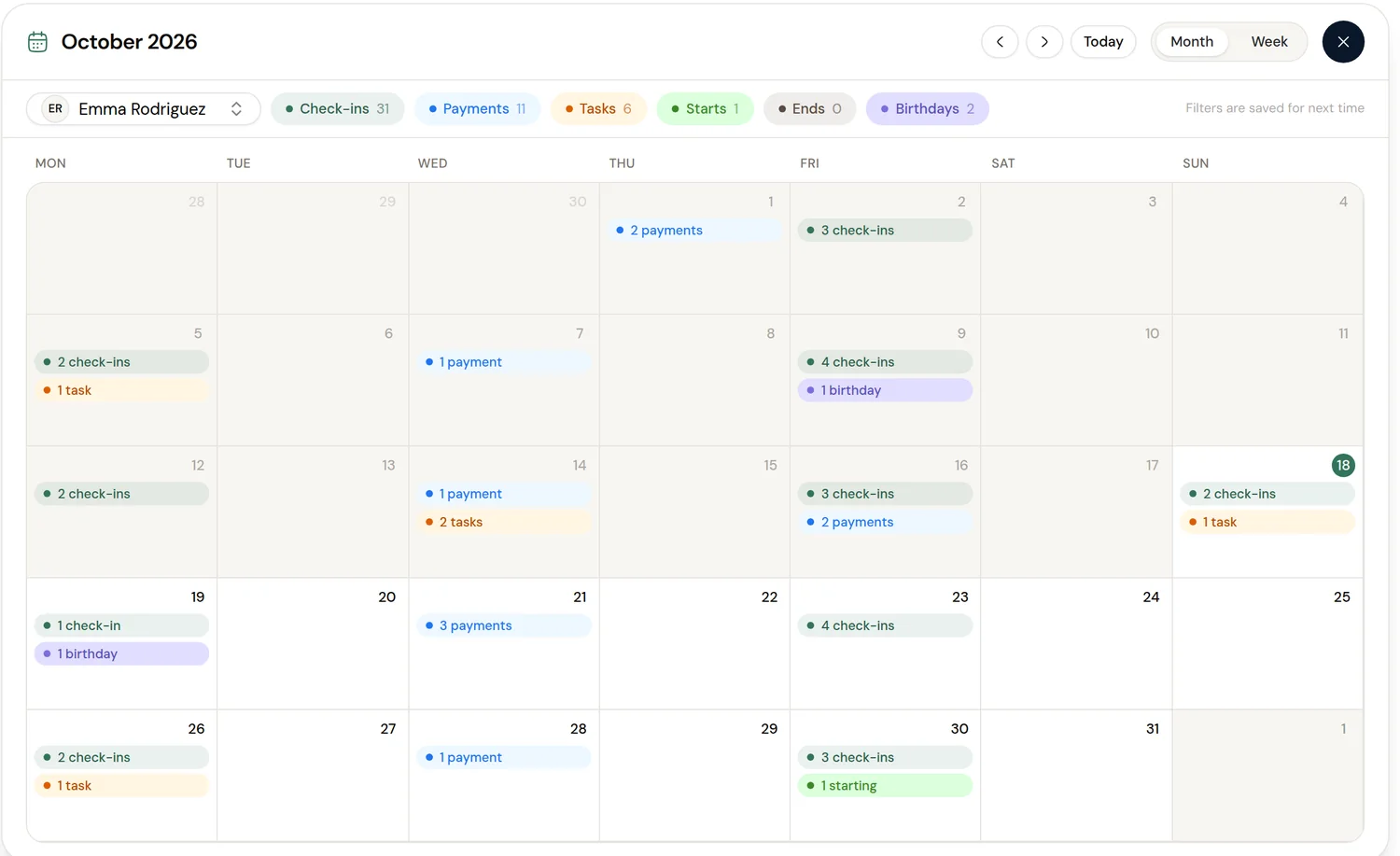
Check-ins, payments, tasks, birthdays and coaching start and end dates for all your clients, in a week or month view. Filter by coach or by type, and see dates in each client's own time zone. Paused clients stay on it, ended clients drop off. It is an overview of what is due, not a booking calendar.
Compared to the old way
No spreadsheet of start dates, no pausing three things by hand
The usual setup is start and end dates in a spreadsheet, a client on holiday meaning you pause the subscription in Stripe, stop the automated messages and set yourself a reminder to undo both, and a client who still has the app months after they left. When something changes on a shared account, nobody knows who did it. In Coachway the pause moves invoices and automations together and ends on its own, the end date lives on the client, access follows the rule you set, and the activity log shows who did what. Conversations stay in the Power Panel, and team permissions are on team roles.
Ways coaches use it
The weeks coaches reach for it
The client on holiday
Pause them for two weeks with a Back on date. Their scheduled invoices and automations move with the pause, and they are back to Active on the day you picked.
An injury break
Pause and keep their app access, so they can still open the app while they recover. Resume early from the status menu if they are back sooner.
Renewal conversations
Open Ending soon once a week. It lists clients whose coaching period ends soon and clients whose payments stop soon, so you talk about the next block before it runs out.
Moving clients over
Add your clients, then invite up to 25 of them in one go with one email template. Payments are set up per client afterwards.
Handing a client to a teammate
Select clients and use Assign Coach in the bottom bar. The new coach gets the notes and the full chat history, and the activity log shows who changed what.
A client who comes back
Reactivate an ended client without having to add a payment plan first, and resend the invite if the email was wrong.
Want to message a whole group after tagging them? Use broadcasts from the same client list. Browse all Coachway features to see how the pieces fit.
Everything client management covers
See all featuresTry it on a test client first
Start the free trial, add a test client and pause them for a week. You will read exactly what moves before you confirm.
What coaches ask about managing clients
How do I pause a client?
Open the client and choose Pause from the status menu. Pick when the pause starts (today or on a date), when they are back on (a date, or 1 week, 2 weeks, 1 month or 3 months), and what happens to app access: Keep, Grace period or Remove. Read the summary under What happens, then confirm.
What happens to payments and automations during a pause?
Payments are moved, not stopped: scheduled invoices move later by the length of the pause and nothing is charged while the client is paused. Automations send nothing during the pause and continue from where they left off when the client is back, with the remaining steps moved forward.
Can I end a pause early?
Yes. Choose Resume from the status menu and the client is back to Active with access restored. A client who was Pending before the pause goes back to Pending, and a payment plan that was cancelled during the pause does not restart by itself.
Does a client keep app access after I end them?
That depends on your account default under Settings, Account, Client Defaults: revoke immediately, a grace period of the number of days you set, or keep access indefinitely. You can still change it for one client in their Payment tab, ending access now or on a date, or granting it again.
Do paused or ended clients count on my Coachway bill?
Billing is based on app access, not coaching status. Any client with app access for more than 48 hours counts as a client on your bill, including paused and ended clients who still have access. To avoid paying for a client on a break, remove their access during the pause.
Can I see who changed a client's plan or status?
Yes. Every client has an activity log with emails, meal plan and workout changes, info updates, app logins, check-ins, paid invoices and status changes. Each change shows the team member who made it.
Can I invite many clients at once?
Yes. Select up to 25 clients in the client list and send all their invitations with one email template. Clients who already have an active invitation, finished onboarding or a pending payment are skipped, and you see the result afterwards. Payment plans are set up per client.
What if my client cannot find the invite email?
Every client has a personal invitation link. Open the client, go to Settings, Access and copy the link, then send it by text or chat. The expiry date shows under the link; if it has run out, generate a new one.
Can I add a client who does not pay through Coachway?
Yes. Choose No product in the Membership step and the client only gets the app invite. You can add a payment plan later from their Payment tab. They still count on your Coachway bill once they have had app access for more than 48 hours.
My client already uses Coachway with another coach. Can they join me?
Yes, with the same email. They log in with their existing login and accept your invitation, and until they do, an orange icon on the client shows the invite is not accepted yet. In the app they can keep both accounts and switch between them without logging out.
Why is my client Pending instead of Active?
You choose what moves a client from Pending to Active in your account settings under Client activation: manually, or automatically when they accept the payment offer. A client added with No product has to be activated by you if your account activates clients on first payment.
Can I delete a client and their data?
Yes, from the client's Settings under Danger zone. It removes their check-ins, photos, assignments, messages, notes and payment history on your account and cannot be undone. Deletion is blocked while billing is still active, so cancel the subscription and settle open invoices first.
Articles & guides
all guides12 best client management software for personal trainers (2026)
An honest comparison of the 7 platforms online coaches actually use. Pricing, features, support, Stripe ownership, and which one fits which size of business.
Read the guideHow to onboard online coaching clients so they stick (2026)
Most clients who quit early do not quit because the program was wrong - they quit because the first two weeks felt impersonal, disorganized, or quiet. This playbook covers the exact first-14-days flow: a video welcome over a wall of text, a single intake form for goals, health, schedule, food, and starting photos, expectations and boundaries set early, a drip onboarding flow triggered off form completion, and a personal first check-in around day 7.
Read the guideHow to retain online coaching clients and reduce churn (2026 guide)
Most coaches chase new clients while quietly losing the ones they already have. This guide covers why retention beats acquisition economically, the real churn signals (missed check-ins, going quiet, slowing logins), early-warning alerts on an inactivity threshold, a consistent weekly check-in cadence, making progress visible with charts and photos, re-engagement and plateau plans, and the honest truth that some churn is healthy.
Read the guideKeep exploring
Explore more features
Payments
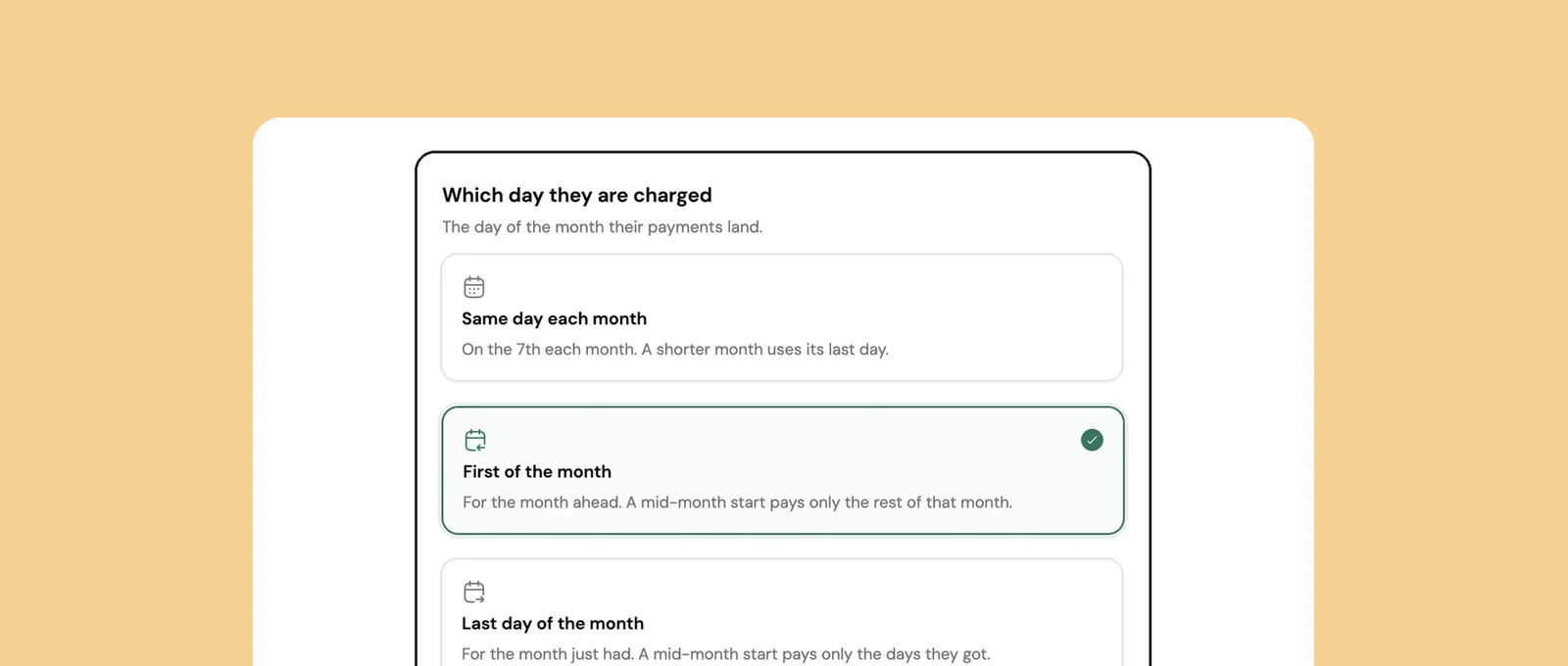
Subscriptions on your own Stripe account, charged on the day you choose. Coachway takes 2.4% per transaction plus Stripe's fees.
Check-ins & forms
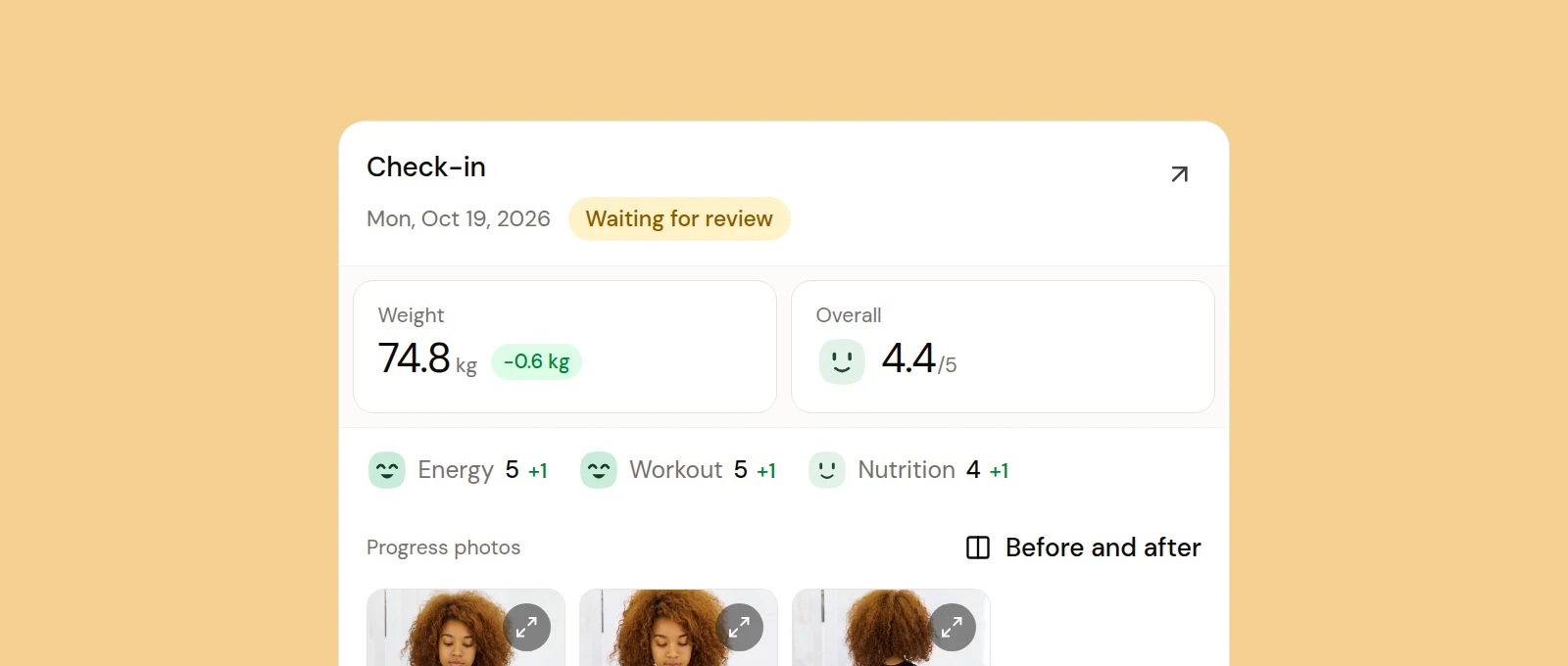
Onboarding and weekly check-in forms you build yourself, with skips for holidays and a first check-in date.
Communities
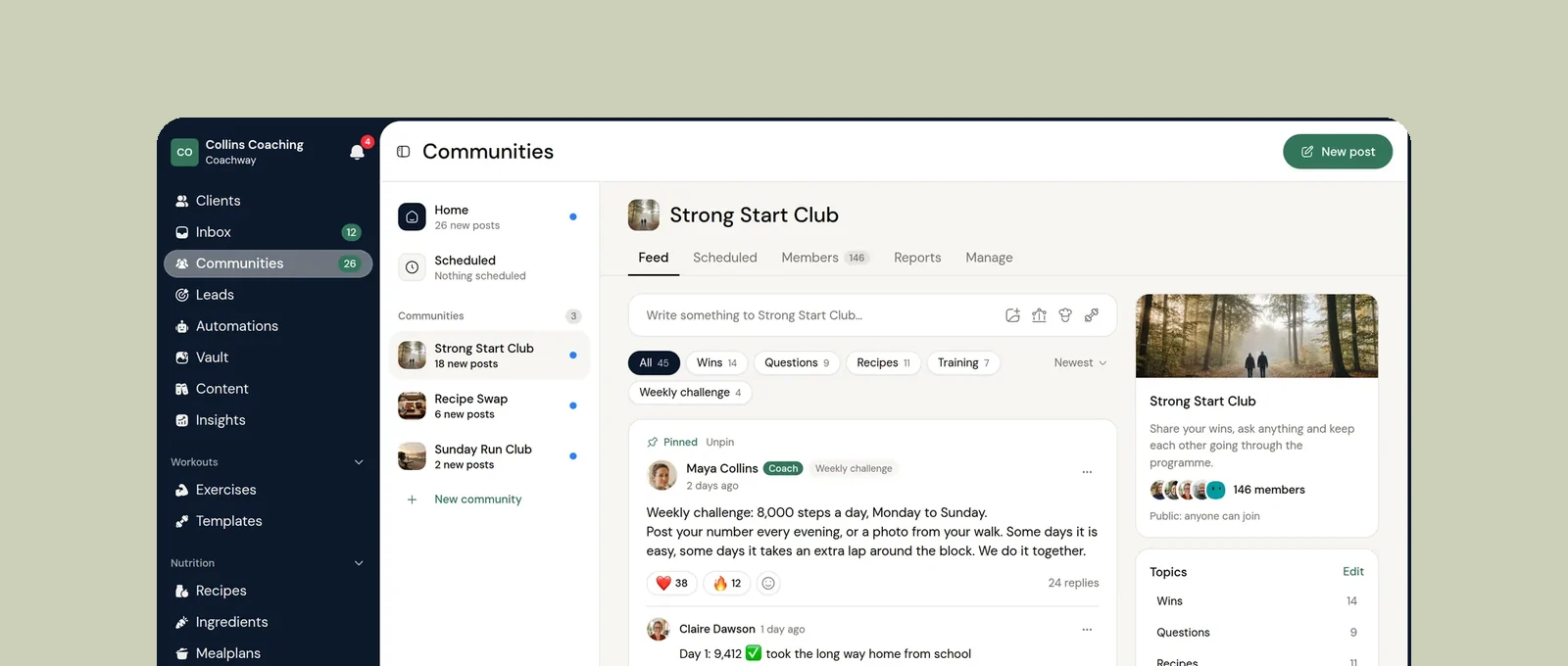
A shared feed in the client app where your clients post wins, ask questions and vote in polls.
See what Coachway can do for your coaching business
Coachway was built on knowledge from working with 150 online coaches over 6+ years, who all hit the same wall - slow platforms, clunky workflows, wasted hours. Start your 14-day free trial and see what we fixed - the whole platform, no charge today, cancel anytime under Billing.