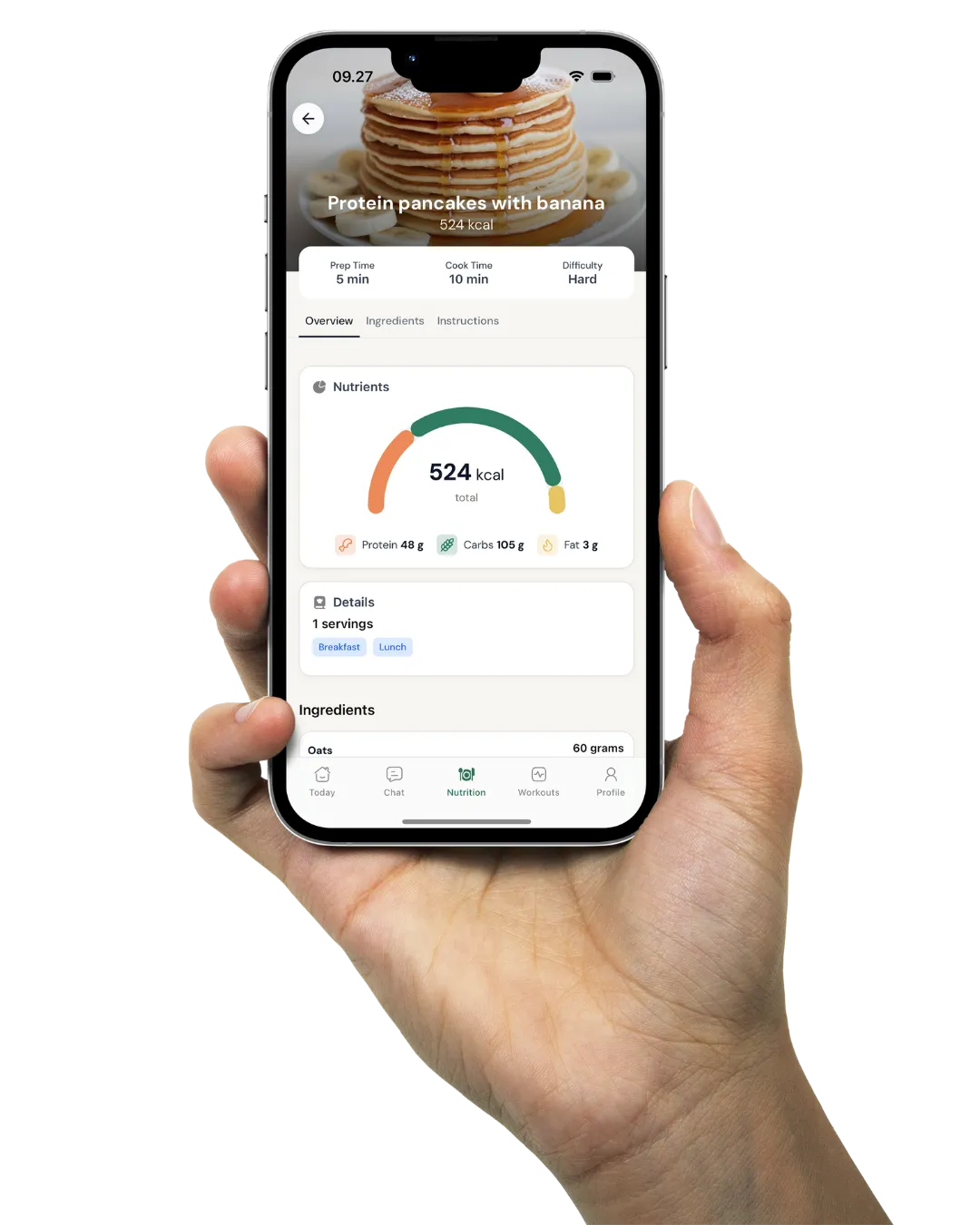
Before-and-after posts from your clients' check-in photos
Your clients' progress photos sit on their profile, with the week and date. Open two dates in the photo studio, line them up, add their numbers as stickers and download an image for a post, a story or the chat.


In short
Coachway turns your clients' progress photos and check-in data into images you can post or send. Clients upload photos in onboarding, at check-ins or from the app. You line up any two dates in a full-screen photo studio, add stickers filled from their data, and download or copy a 9:16, 4:5 or 1:1 image. Share progress adds seven ready-made card types.







Where photos come from
Every client photo in one place, from day one
Clients add progress photos three ways: image fields in your onboarding form, image fields in your check-in form, or Profile > Add measurement in the app between check-ins. Starting photos from onboarding show on the client's Development tab straight away, so you have the before picture before the first check-in. Everything lands in one place on the Development tab, with the week and date.

The photo studio
Line up two dates so the change is the only difference
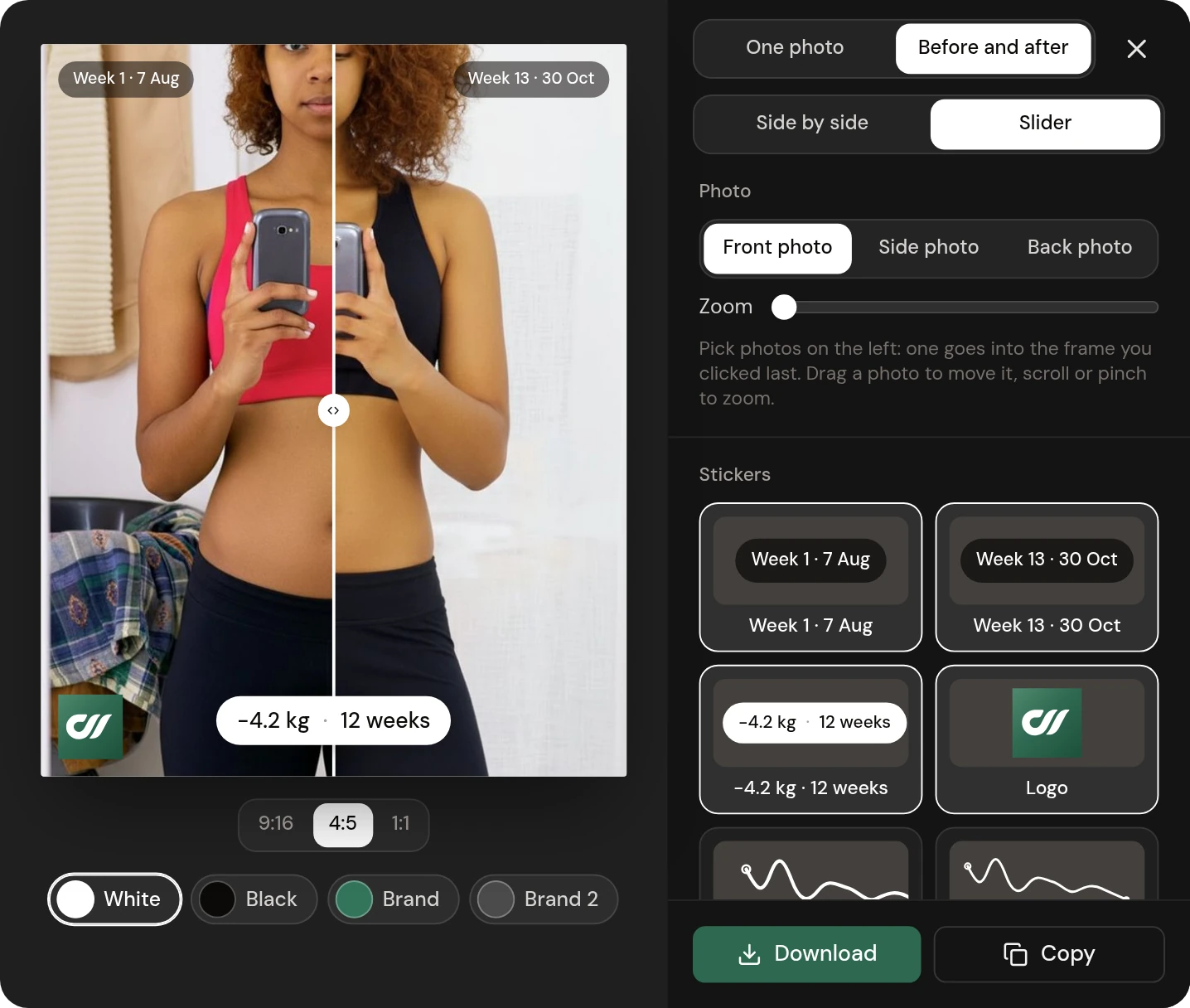
Click Before and after on a check-in card in your inbox, or open the client's photos on the Development tab, and the studio opens in full screen. Show one photo, or a before and after side by side or as a slider the viewer drags. Move and zoom each photo until the client is the same size and in the same place in both, then add stickers that fill themselves in from the client's data: the week and date, the change, the weight curve, the goal ring, measurements and your logo on the exported image.

Share progress
Seven ready-made cards from the client's own numbers
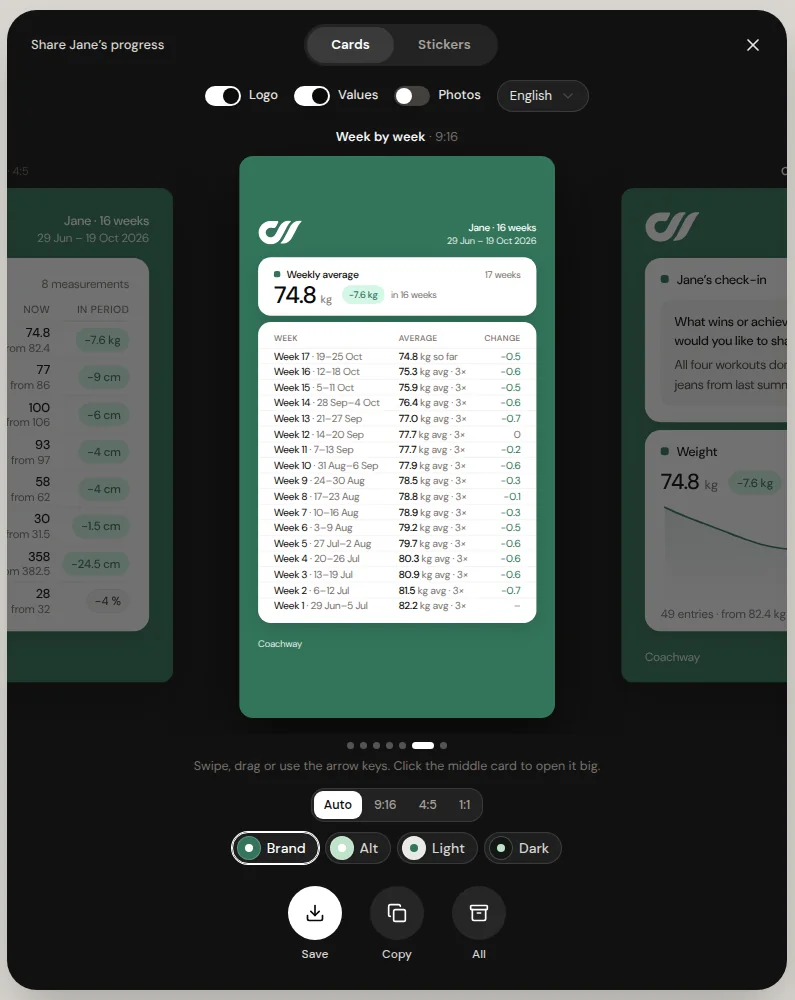
On a client's Body progress, click Share progress. The Cards tab builds finished images from their data: weight chart, before and after, goal, dashboard, measurements, week by week, and a check-in card with the client's own answer. Pick Auto, 9:16, 4:5 or 1:1, then a Brand, Alt, Light or Dark look. The cards use your brand colours and logo from Settings > App on the exported image.
Several designs
Post every week without it looking the same
A goal ring, a weight chart, a light goal card, a dark check-in card with the client's own words. Rotate between them so regular result posts do not repeat, and use the same designs as stills or as frames for a video. The weight data behind every card is the same data you read in client progress.
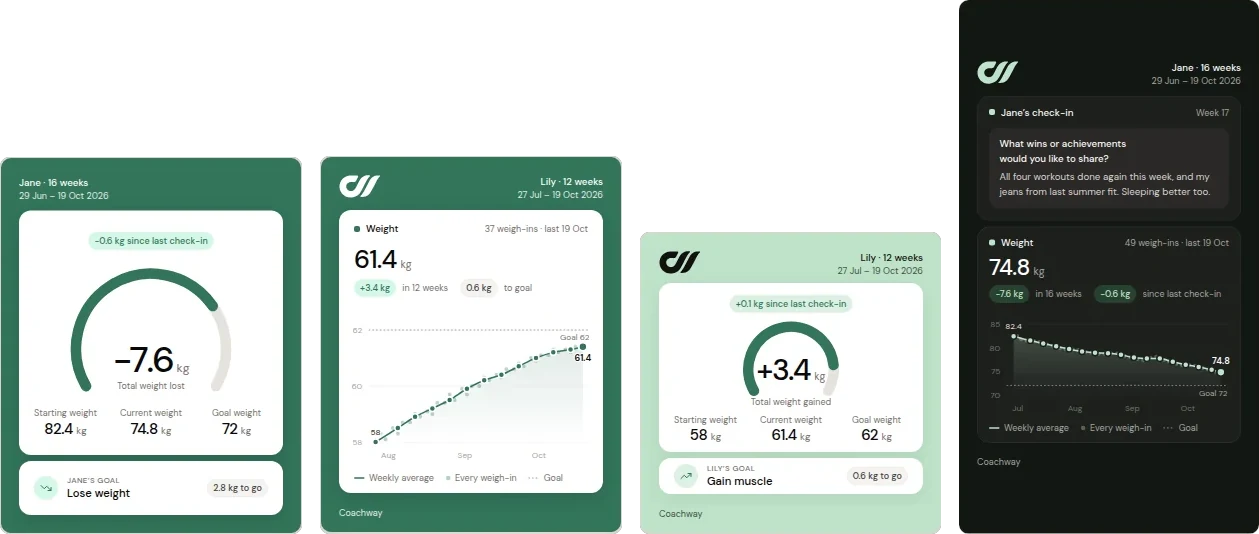
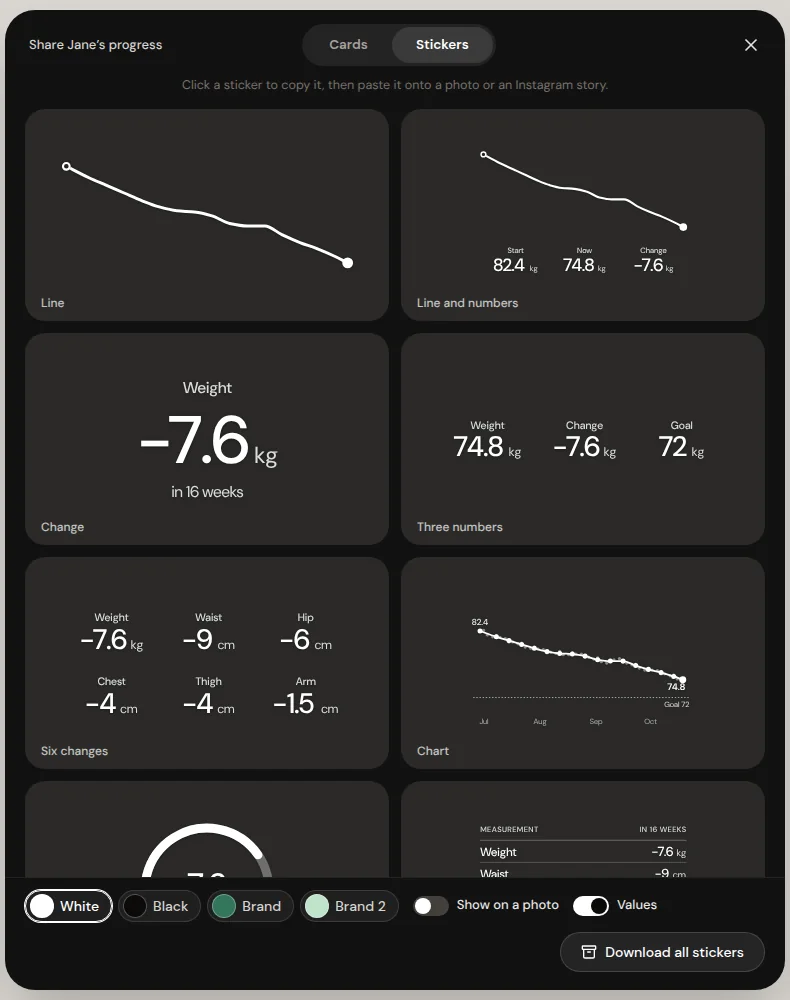
Swipe to see all four.

Stickers
Paste the result straight onto a story
The Stickers tab gives you the curve, the numbers and the goal ring as transparent images with no background. Click one to copy it, then paste it onto your own photo or straight into an Instagram story. Turn on Show on a photo to preview them on an image, pick White, Black, Brand or Brand 2, and grab every sticker at once with Download all stickers.
Privacy and consent
Share the change, keep the rest private
Ask first. Always get your client's OK before you share their photos or progress publicly. That consent is your responsibility as the coach.
Values off. The actual weight and goal are hidden and only the change shows, for example "-2 kg in 2 weeks".
Photos only when you switch them on. Progress photos are only included on a card when the Photos toggle is on.
Nothing changes for the client. Sharing only creates images. For clients where weight is not helpful, you can also hide it in their app, see client progress.
Ways coaches use it
From check-in to content without a collage app
The monthly client win
Open the latest check-in, put week 1 next to this week in a 4:5 frame, add the change sticker and post it. Ask the client first.
A sticker on your story
Copy the Change or Line and numbers sticker and paste it straight onto a training clip or a photo in your Instagram story.
Show the client their own change
Send a before and after into the chat when the scale feels slow. Seeing twelve weeks side by side can show what the scale does not.
Results without the weight
Turn Values off and the card shows only the change, like "-2 kg in 2 weeks". The weight and the goal stay private.
The week-by-week recap
The Week by week card lists every week with its average and change. A clean way to show a steady trend, not one good morning.
Zoom in on the detail
For physique and athlete clients, zoom in on one body part in both photos and line them up, so the difference you talk about is the one they see.
The photos come from your onboarding and check-in forms, the Before and after button sits on the check-in card in the Power Panel inbox, and the numbers on every sticker come from the weight and measurements you track in metrics and client progress.
Compared to the old way
No more digging photos out of the chat
A before and after used to mean scrolling back through months of messages for two photos, cropping them in a collage app, typing the weight in by hand and checking the dates twice. In Coachway the photos, the dates and the numbers already sit on the client's profile. The studio puts them in one frame, fills in the stickers and exports the right size for where you post.
Everything progress photos can do
See all featuresMake your first before and after this week
Start the trial, add image fields to your check-in form and the studio and Share progress are there the moment photos come in.
What coaches ask about progress photos
How do I open the photo studio?
The photo studio and Share progress are in the web dashboard. Two ways to open it. In the Inbox, click Before and after on a check-in card that has progress photos, or open the client's progress photos on their Development tab. The studio opens in full screen with all of the client's photos on the left.
Where do my clients' progress photos come from?
From image fields in your onboarding form, image fields in your check-in form, or Profile > Add measurement in the app between check-ins. You can set the image fields on the check-in form to Optional, so clients can upload every week without being forced to.
Can I upload photos on a client's behalf?
No. Photos can only be uploaded by the client from the app. You can backdate weight and measurements from the Development page, and if you have a client's older photos you can share them to their Vault so they are kept in one place.
Can my client see their own progress photos?
Yes, the ones they uploaded in a check-in, under Profile > Latest check-in > Check-in history. Photos from the onboarding form and photos added outside a check-in are only visible to you.
How do I line up two photos so they compare fairly?
Inside the frame, drag a photo to move it and scroll, pinch or use the Zoom slider to resize it, so the client is the same size and in the same place in both. Switch between Front, Side and Back to compare the same angle.
What does Share progress make?
Seven card types: Weight chart, Before and after, Goal, Dashboard, Measurements, Week by week and Check-in with the client's own answer, plus transparent stickers. A card only shows when the client has data for it, so Goal needs a goal weight and Before and after needs progress photos. Card and sticker text is in English; the language picker changes dates and decimal formats.
Can I share progress without showing my client's weight?
Yes. Turn Values off and the actual weight and goal are hidden, so only the changes show, for example "-2 kg in 2 weeks". Progress photos are only included when the Photos toggle is on.
How do I put a sticker on an Instagram story?
Open Share progress, go to the Stickers tab and click a sticker to copy it, then paste it onto a photo or straight into the story. Stickers have no background, and Download all stickers gives you every one as a zip file.
Can I download a client's progress photos?
Yes. Right-click a progress photo anywhere in the platform to save it as PNG or JPEG, copy it or open the original. Finished images from the studio have their own Download and Copy buttons.
Do I need my client's permission to post their photos?
Yes. Always get your client's OK before you share their photos or progress publicly. Getting that consent is your responsibility as the coach, and sharing never changes anything in the client's data.
Articles & guides
all guidesHow to track client progress photos: a coach guide (2026)
How coaches take, standardize, store, and compare client progress pictures - lighting, angles, frequency, consent and privacy - and read progress pics alongside weight, measurements, and other metrics so a single photo never misleads.
Read the guideClient Transformation Story Template for Fitness Coaches (2026)
A five-beat client transformation story template: the consent message to send first, three finished examples (fat loss, strength, habit), a prompt that turns check-in data into a story without inventing anything, the does-not-sound-like-AI checklist, and the three questions that get the client's own words.
Read the guide10 Instagram Story Ideas for Fitness Coaches That Get Replies (2026)
Thirty Instagram story ideas organized by the job each one does, from daily relatability and interactive polls to permission-based client proof and turning a tap into a DM conversation.
Read the guideKeep exploring
Explore more features
Client progress
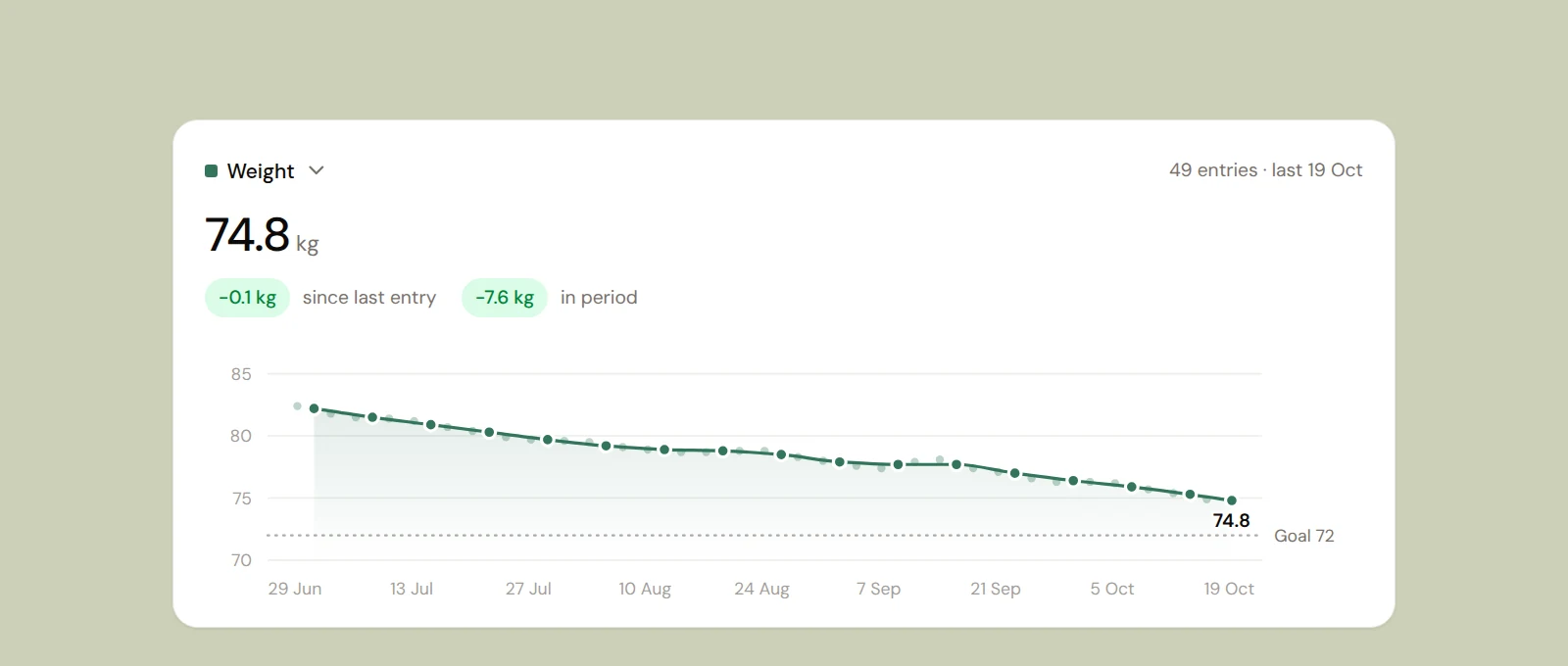
Weight, measurements, photos and workouts on one page, with charts that show change over time.
Check-ins & forms
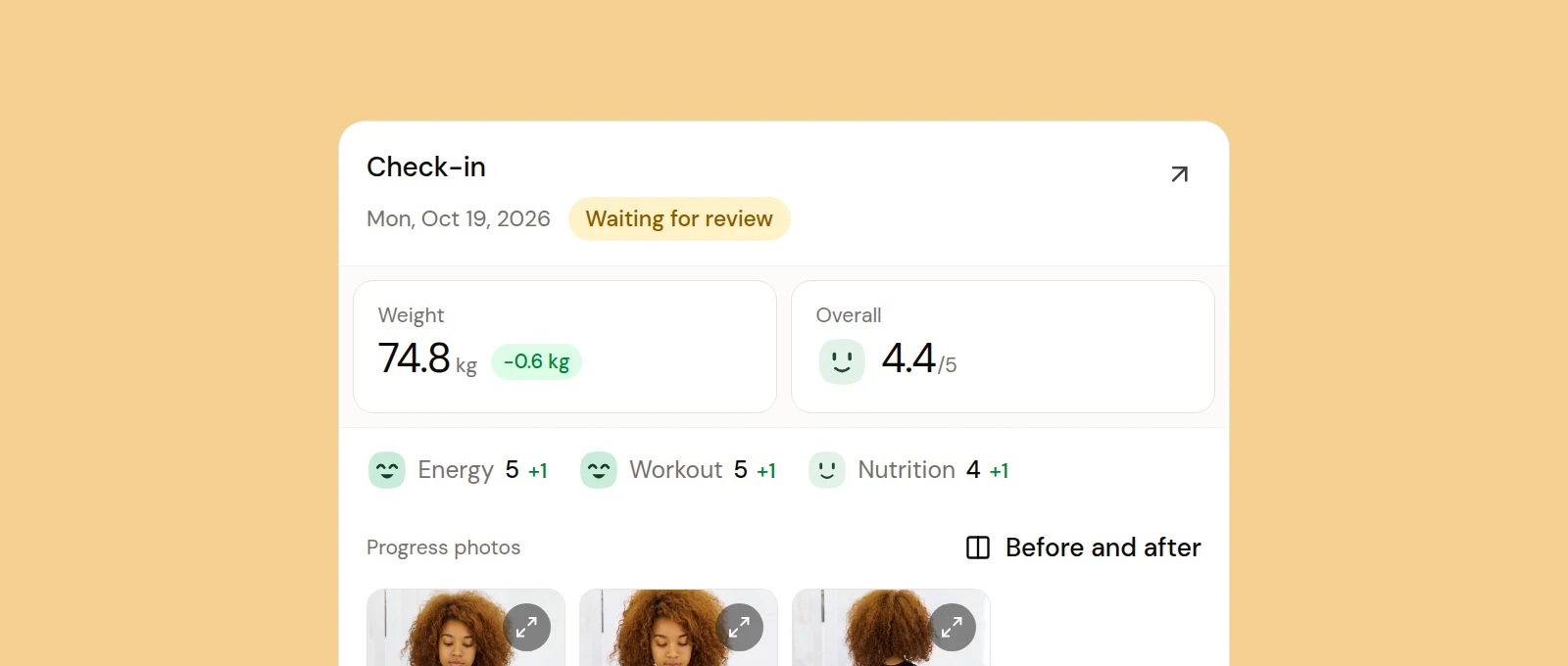
Onboarding and weekly check-in forms you build yourself, with skips for holidays and a first check-in date.
Communities
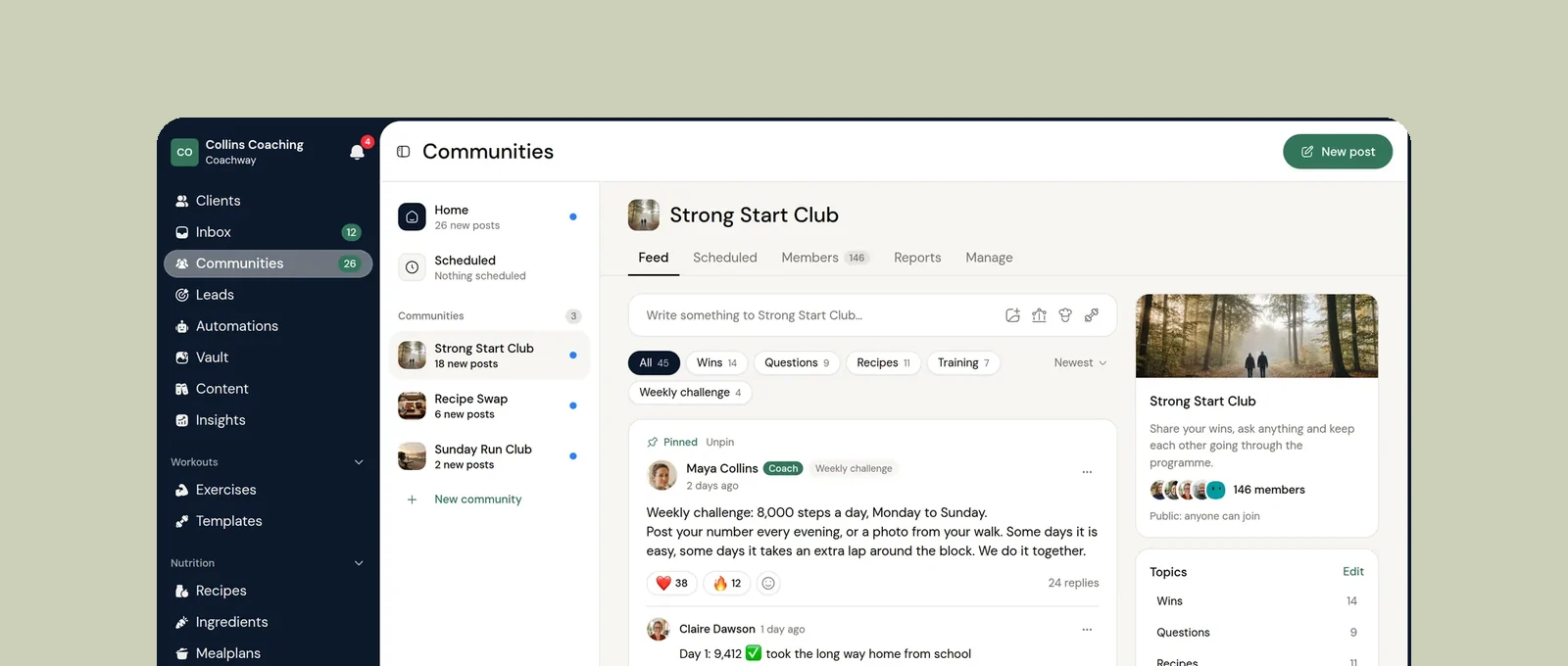
A shared feed in the client app where your clients post wins, ask questions and vote in polls.
See what Coachway can do for your coaching business
Coachway was built on knowledge from working with 150 online coaches over 6+ years, who all hit the same wall - slow platforms, clunky workflows, wasted hours. Start your 14-day free trial and see what we fixed - the whole platform, no charge today, cancel anytime under Billing.