A community for your coaching clients, inside the app they already use
Post a weekly challenge, run a poll and let clients share wins and recipes, one tap from their chat with you. You decide who joins and who gets to post.
In short
Communities is a shared feed inside the Coachway client app where your clients post wins, ask questions, vote in polls and swap recipes and workouts. You can run several communities at once, keep each one private or open to join, and decide whether members can post or only your team can. It has been live since October 2026, and more group coaching features are on the way.
The coach view
Every community you run, on one screen
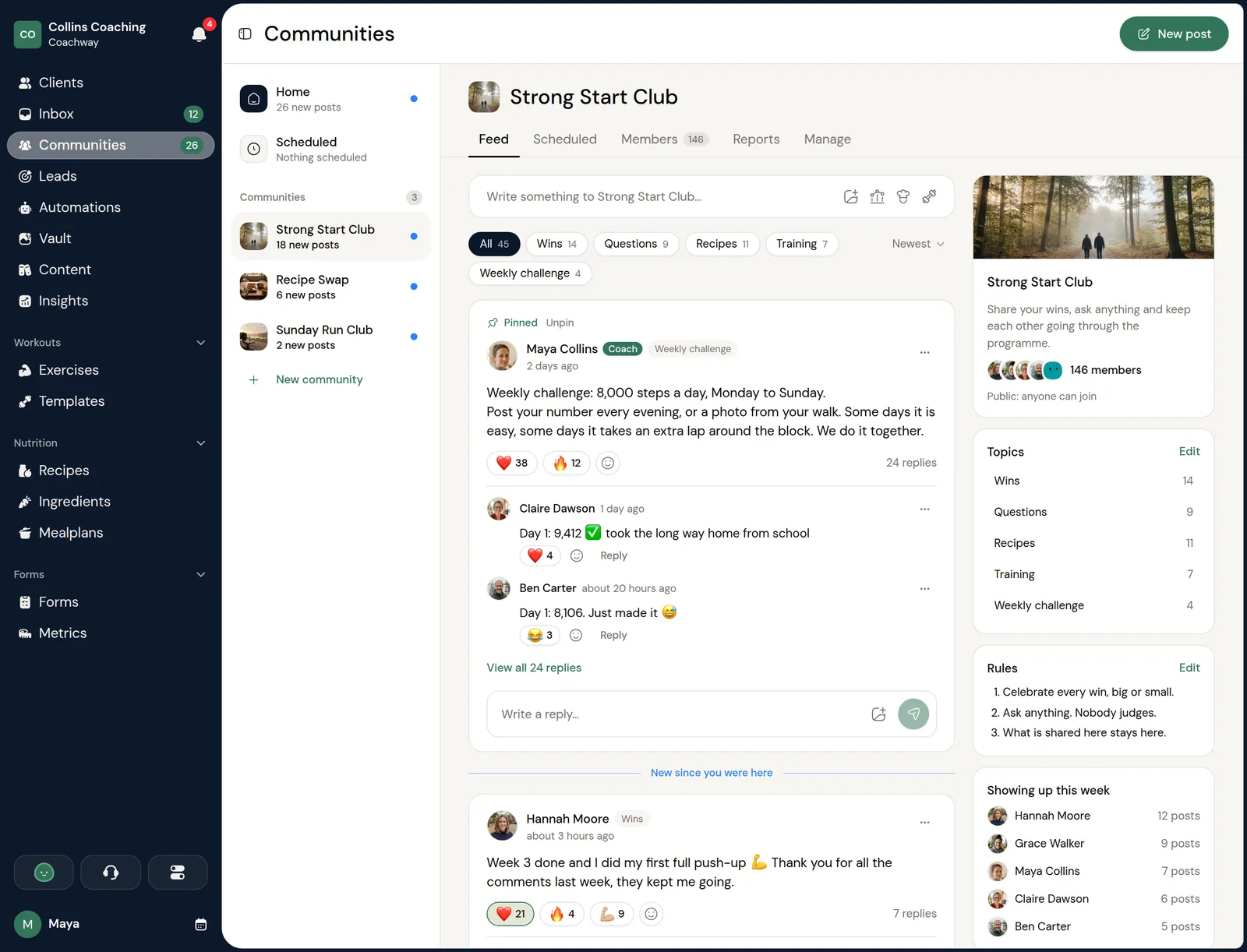
Communities sits in the left menu of the web platform. Pick a community on the left and its feed opens next to it: filter by topic, see who showed up this week and pin the weekly challenge to the top. Each community also has Scheduled posts, Members, Reports and Manage tabs. Posts from you and your team carry a Coach label. Members can report each other's posts, and reported posts collect under Reports. Team roles decide who on your team can read community feeds, post, schedule and moderate. See team roles.

Set it up
Private, open to join, or announcements only
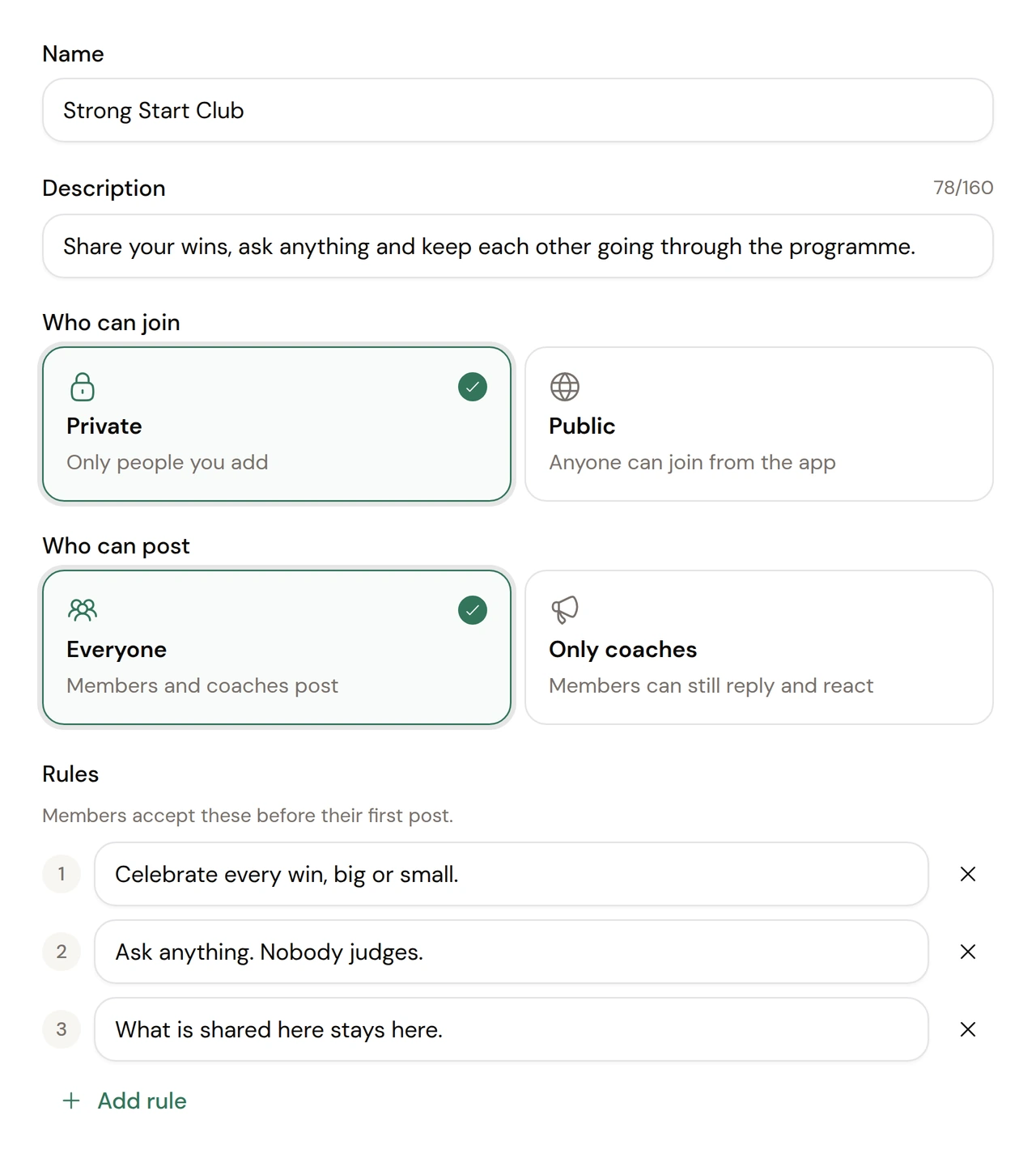
Click + New community, name it and you are in. A new community starts Private, so nobody sees it until you are ready. On the Manage tab you write a one-line description clients see before they join, choose who can join and who can post, and write the rules. Topics such as Wins, Questions or Progress let members tag their posts so you can filter the feed.

Add members
Add a whole challenge group in one go
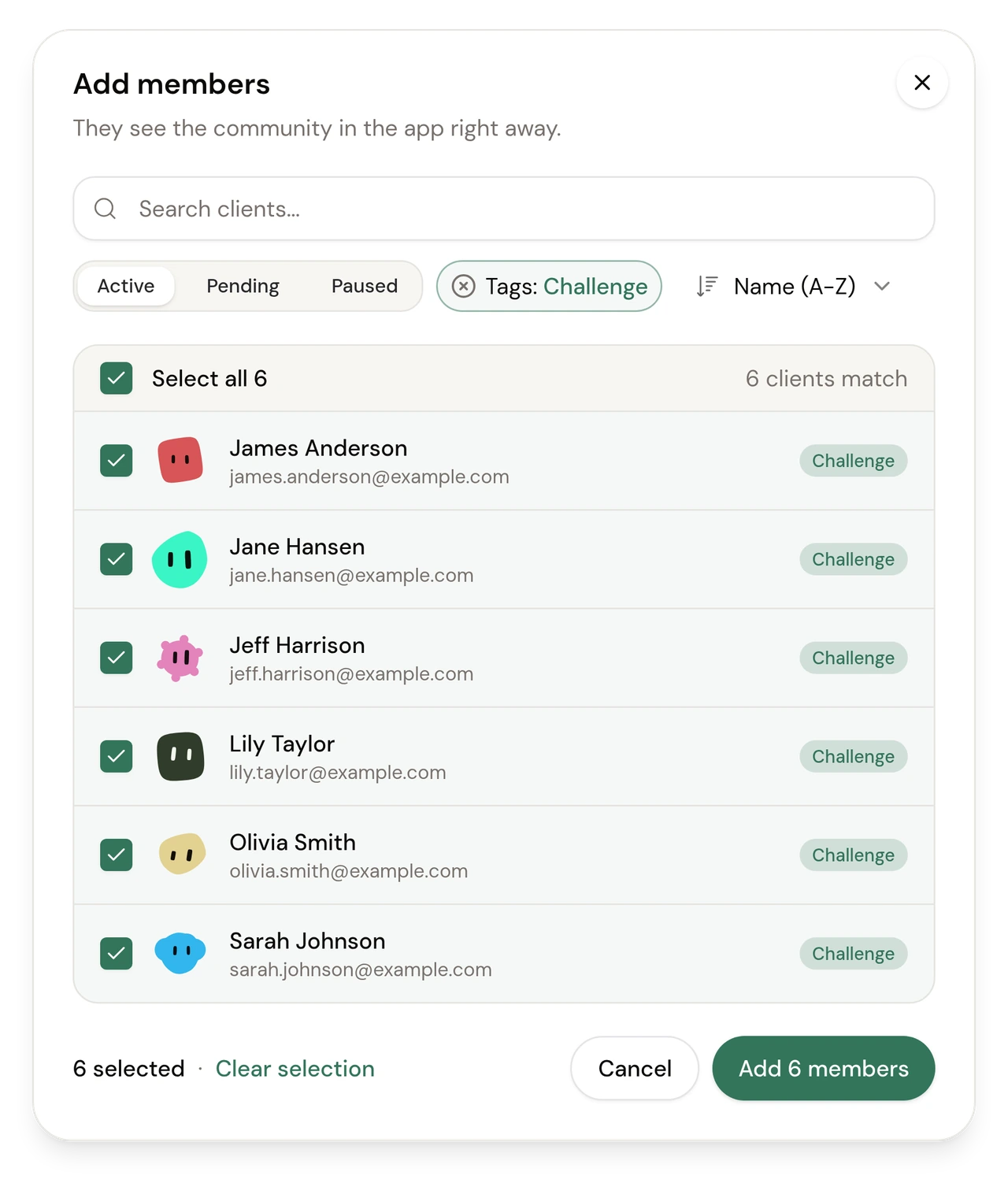
Open Members, click Add members and narrow the list by status or tag. Select all picks every client that matches, up to 500 at a time, so everyone with your challenge tag is in with one click. Clients already in the community are hidden, so nobody gets added twice. Members see the community in the app right away.

Post, plan and ask
Schedule posts, run polls and keep the feed tidy
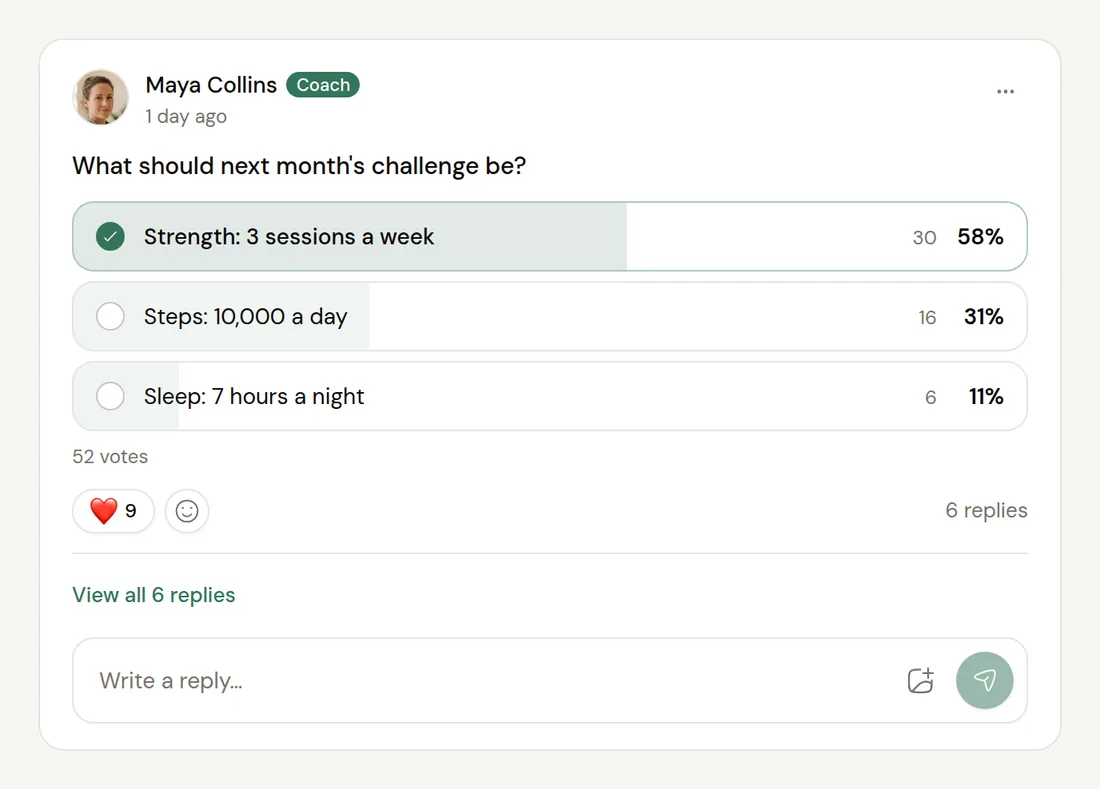
Write a post with photos or video, share one of your recipes or workouts as a card, and tag it with a topic. Click Post now, or Choose date/time to plan the week ahead, and send the same post to one or more communities. Switch to Poll to ask the group a question and watch the votes come in. From the menu on any post you can pin it to the top, hide it from members or delete it.

What your clients see
One tap from their chat with you
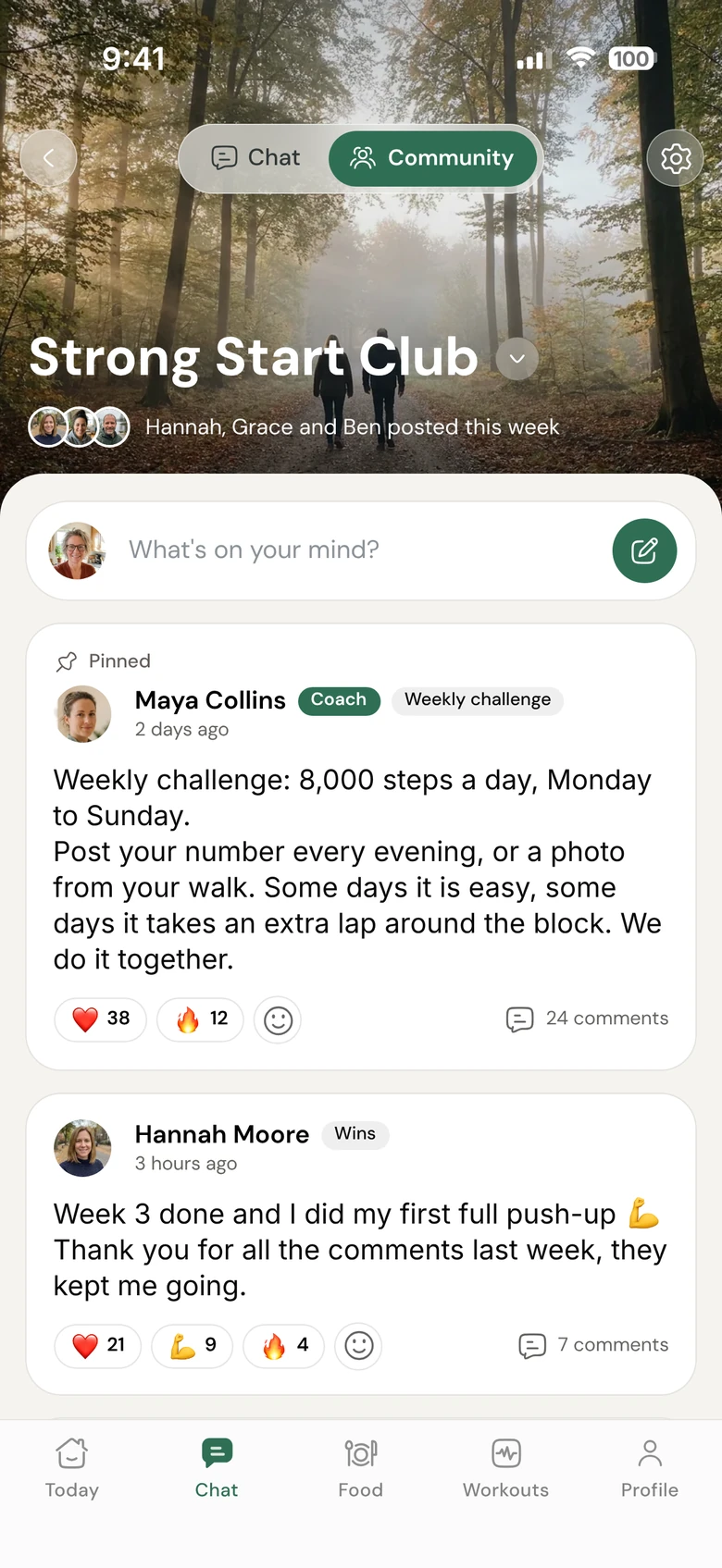
In the client app, a Chat and Community switch sits at the top of the Chat tab. Clients see their communities and the ones open to join, and before joining they are told that others will see their name, photo and posts. Inside, pinned posts sit at the top, your posts carry a Coach label and a line marks what is new since their last visit. Where members can post, clients post text, up to 10 photos or a video of up to 3 minutes.
Recipes and workouts that travel
A shared recipe becomes a real recipe in the client's app
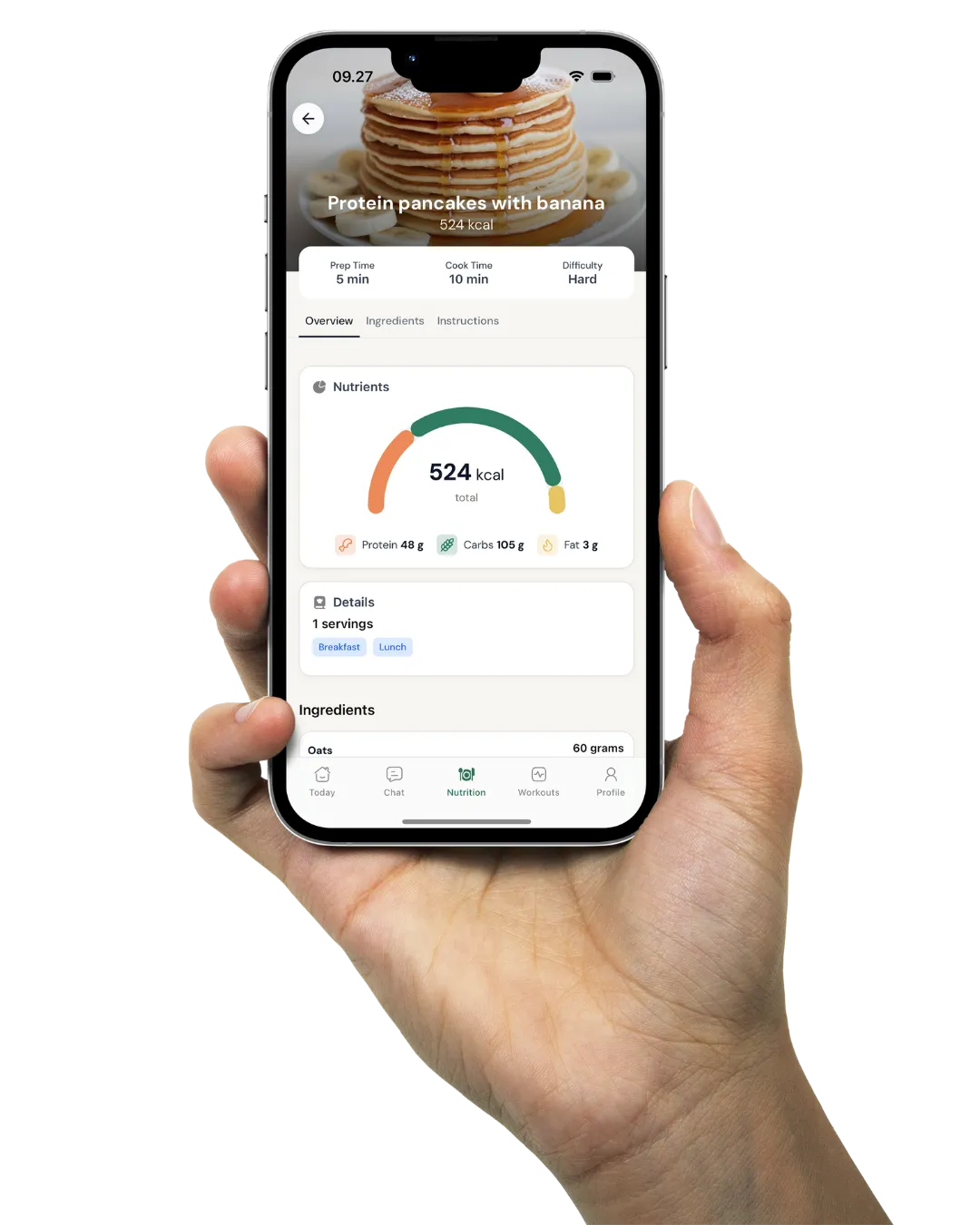
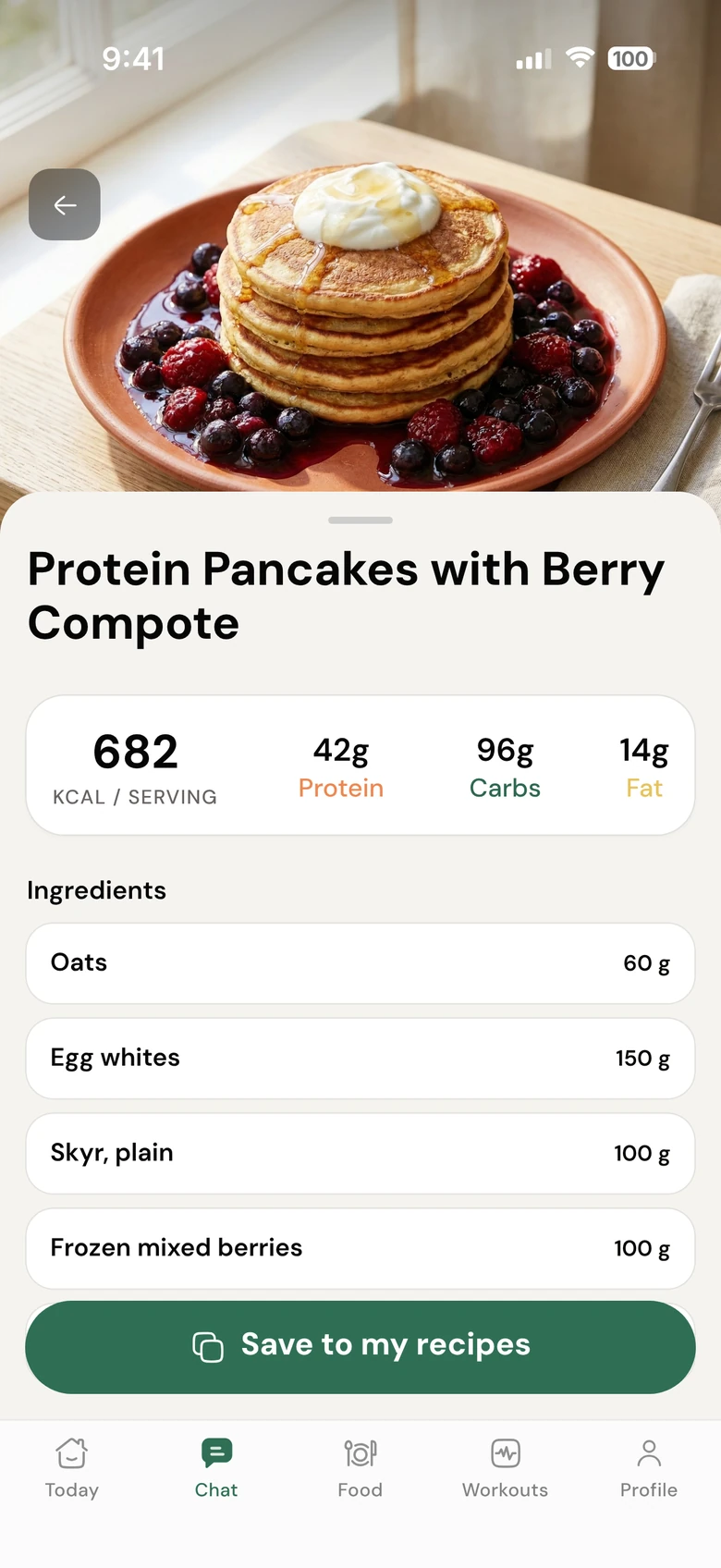
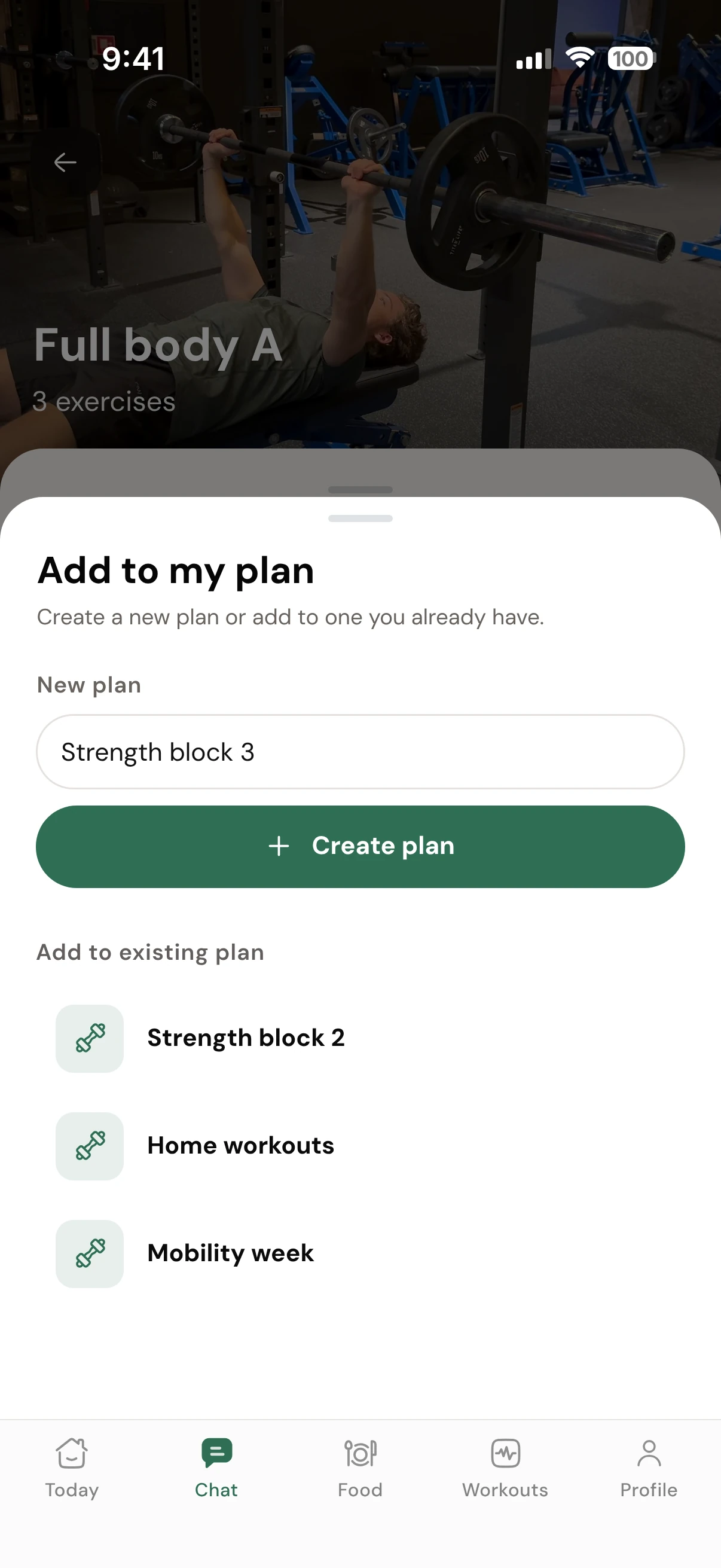
When you or a client shares a recipe or a workout in a community, it shows as a card. Other members open it and save their own copy: a recipe goes to Food, My recipes, where they can adjust servings and log it with Log this meal. A workout goes into a new or existing plan under Workouts, marked Personal.
The copy is theirs. Editing it does not touch the original post, and the plan you built for them stays exactly as you set it. Recipes come from the same place as your cookbooks and meal plans, and workouts from your workout builder.
Ways coaches use it
The communities coaches start first
A time-limited challenge
Create "Spring challenge", filter Add members on the challenge tag and select all. When it ends, archive the community: members stop seeing it, and the posts stay with you.
An announcement group
Set Who can post to Only coaches. You share news, recipes and plans; members reply and react underneath, so nothing gets buried.
A recipe swap
Clients share what they cooked from My recipes. Anyone who likes it saves their own copy and logs it from Food, with the recipe already filled in.
A wins wall
Add a Wins topic and pin a weekly prompt to the top. First push-ups, new PBs and clean weeks get seen and cheered by the rest of the group.
A niche club
Run several communities next to each other: a running club, a workout-playlist swap, a Monday kick-off. Make them Public and clients join the ones they care about.
1:1 and membership clients together
Your 1:1 clients and membership clients can share the same community, so everyone you coach has one place to show up.
Need to reach every client privately instead? A broadcast lands in each client's own 1:1 chat, while a community post goes to a shared feed everyone in it can see and answer. Both live in the same client app, next to workout packs and the rest of the Coachway features.
Compared to the old way
Why not just start a group on a social app?
A group somewhere else
- Clients leave the coaching app to find it, and it sits between their family chats and everything else.
- You add people one by one, from a phone number or a profile you have to look up.
- A recipe arrives as a screenshot someone has to type in again before they can log it.
- When the challenge ends, the group just goes quiet and stays there.
A community in Coachway
- The feed is one tap from their chat with you, in the app where they train and log food.
- You add a whole tag of clients at once, or make it Public and let them join.
- A shared recipe is saved as a real recipe and logged from Food.
- When the challenge ends you archive it, and the posts and members are kept.
Everything Communities can do
See all featuresStart your first community this week
Start your free trial, create a community, add a few clients by tag and post your first weekly challenge.
What coaches ask about Communities
Does Coachway have a community feature for clients?
Yes. Communities has been live since October 2026: a shared feed inside the Coachway client app where clients post, react, comment and vote in polls. It is a feed, separate from your private 1:1 chat with each client, and more group coaching features are on the way.
How do I create a community?
Click Communities in the left menu, then + New community, give it a name and click Create community. A new community starts Private, and a checklist on the Manage tab helps you add members, a banner and a description.
Who can join a community, and who can post?
Private means only people you add. Public means all your clients can see the community and join it from the app. For posting, choose Everyone, or Only coaches, where only you and your team create posts and members can still reply and react.
How many clients can I add at once?
Select all picks every client that matches your filters for status and tags, up to 500 at a time. If more match, you add the rest in a second round. Clients already in the community are hidden, and ended clients cannot be added.
Can I schedule community posts?
Yes. Choose date/time instead of Post now. Scheduled posts are listed under Scheduled in each community and in the overview, where you can edit or delete them.
Can I run polls?
Yes. Switch the post box from Post to Poll, write the question and add at least two options. You can allow several answers and set a close date, and members see the results live with votes and percentages.
Can clients save recipes and workouts shared in a community?
Yes. A shared recipe can be saved to Food, My recipes and logged from there, and a shared workout can be added to a new or existing plan under Workouts, marked Personal. These are the client's own copies, so the original post and your plan stay unchanged.
Can I see who reacted to a post?
Yes, on the web platform. Click the number after the reactions to see everyone who reacted and the emoji they used. Only you and your team see the list; clients see the counts.
Can members see each other, and can they leave?
Members see each other's names and profile photos, and the app tells them this before they join. From the gear icon in a community a client can mute it to stop notifications, or leave it.
What happens to a community when a challenge ends?
Archive it at the bottom of the Manage tab: members can no longer see it, but posts and members are kept and you can unarchive it later. Delete removes the community and all its posts for everyone and cannot be undone.
Articles & guides
all guidesHow to build an engaged online fitness community (that retains clients, 2026)
An engaged community does some of the coaching for you and lifts retention. How to choose a platform, set the rituals, and turn a quiet group into a place clients show up for.
Read the guideFitness challenge ideas to keep clients engaged
A well-run fitness challenge is one of the simplest ways to re-energize the clients you already have - giving a quiet client a reason to log again, turning a flat month into a shared goal, and surfacing who is drifting before they cancel. Eight engagement-focused challenge ideas, how to structure them, and how to run them inside your coaching platform.
Read the guideHow to keep online coaching clients accountable (2026)
Online clients fall off in private, with no studio door to walk through. Accountability is how you replace that missing structure: a steady weekly rhythm, small clear commitments, visible progress, fast acknowledgement, and a nudge when someone goes quiet. Honest about the limit too - you cannot want it more than the client does.
Read the guideKeep exploring
Explore more features
Food logging
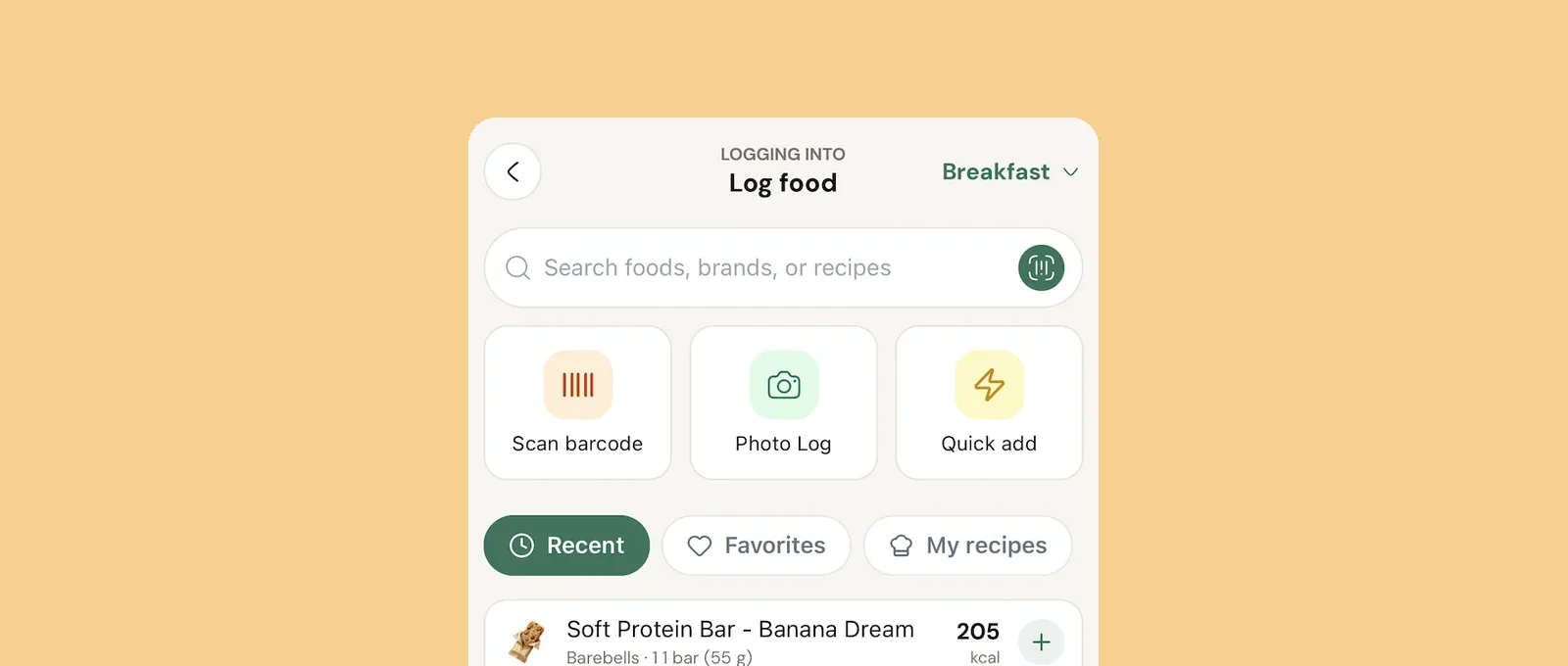
Clients log by search, barcode, photo or an AI estimate they confirm, and you see every day.
Progress photos
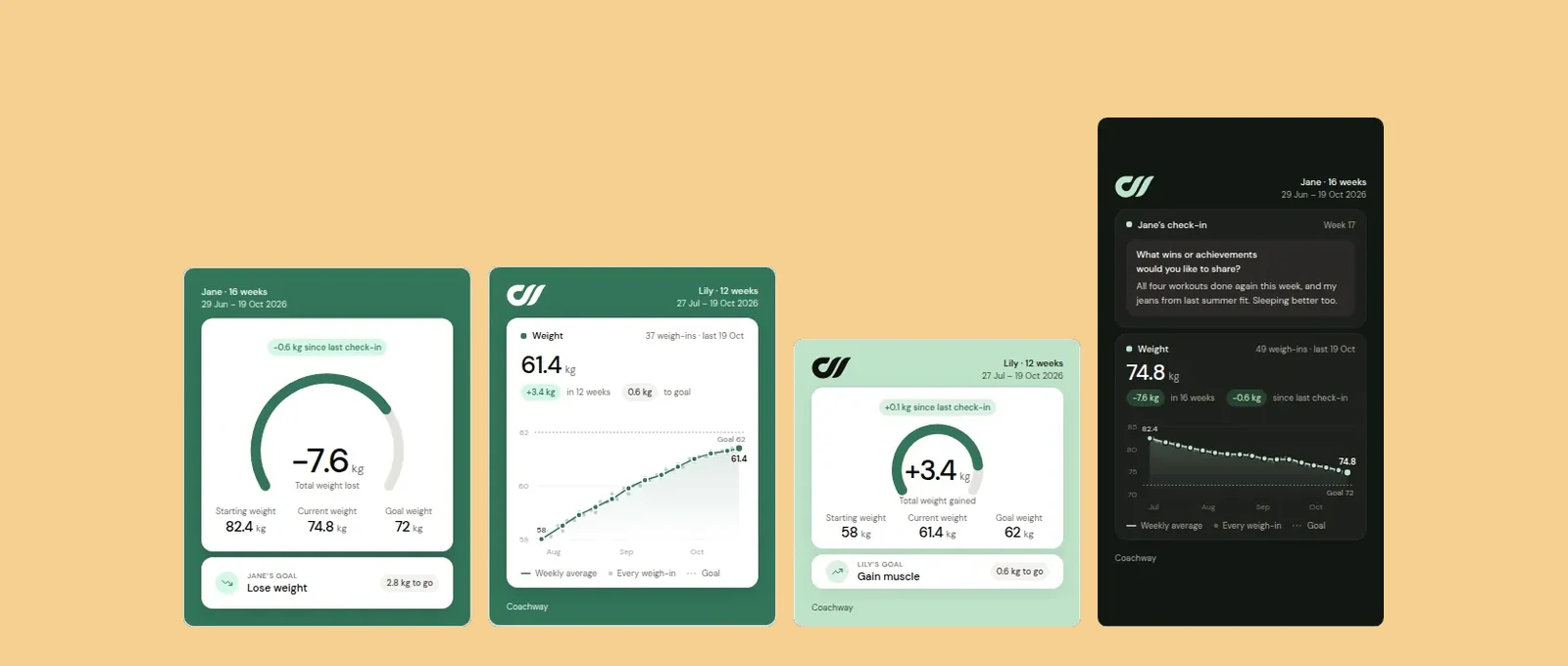
Before and after photos side by side, and share cards made from a client's own numbers.
Client management
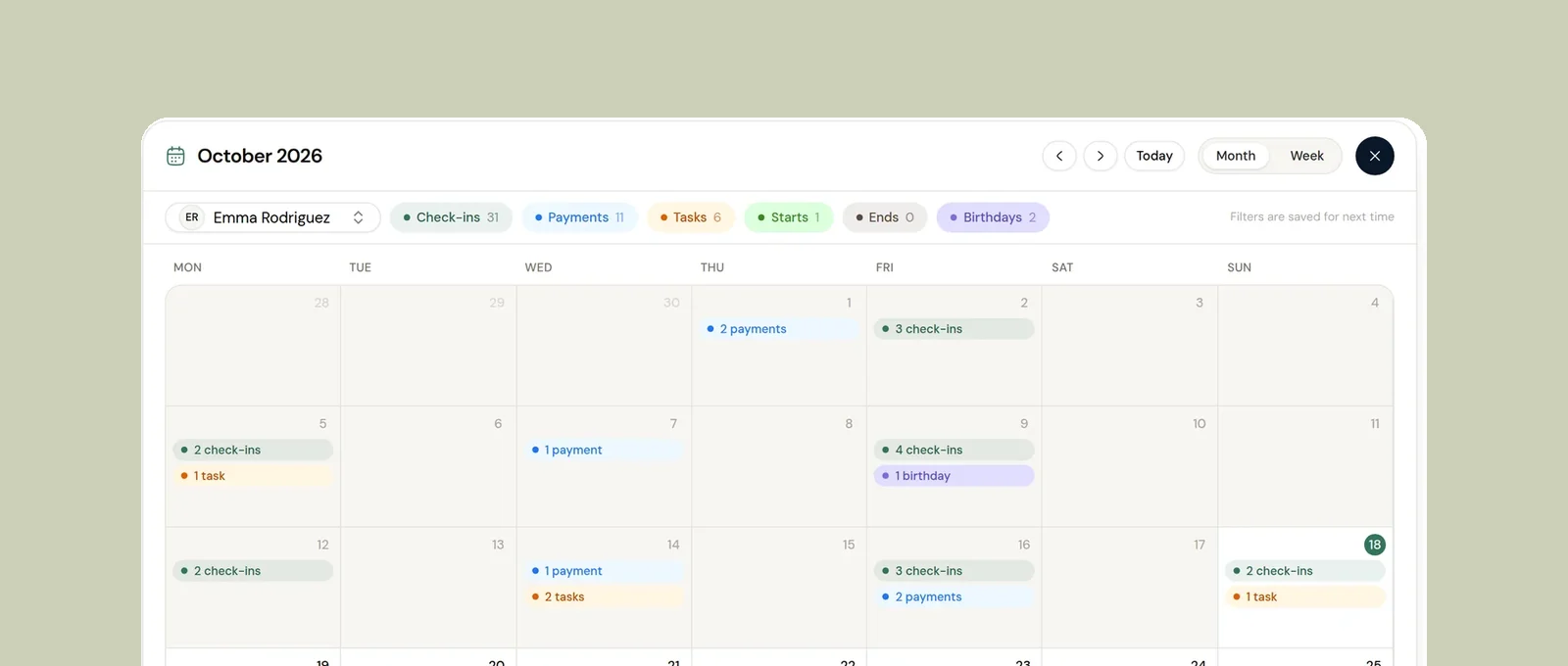
Pause clients, decide their app access when they end, and see every client date on one calendar.
See what Coachway can do for your coaching business
Coachway was built on knowledge from working with 150 online coaches over 6+ years, who all hit the same wall - slow platforms, clunky workflows, wasted hours. Start your 14-day free trial and see what we fixed - the whole platform, no charge today, cancel anytime under Billing.