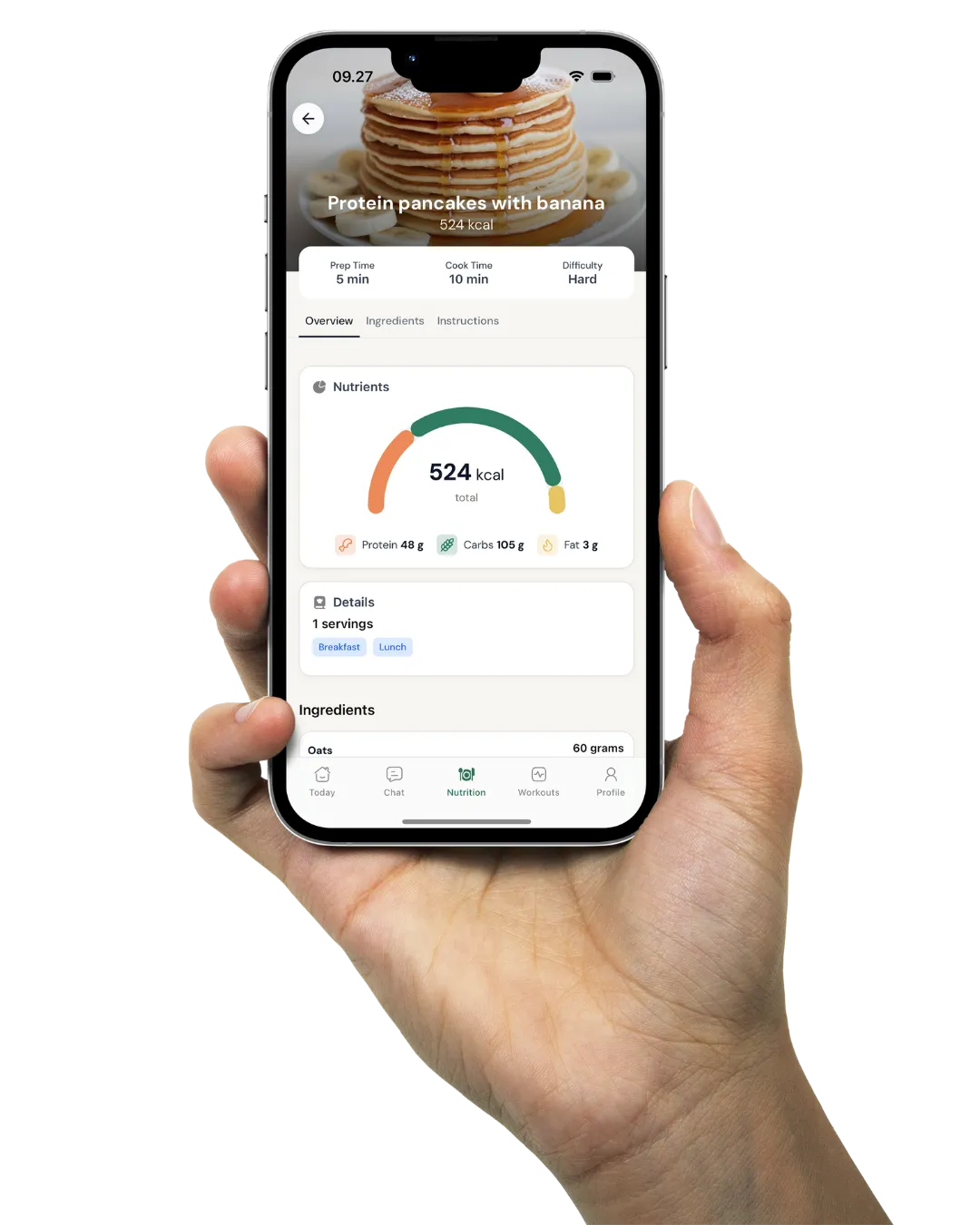
Share guides, PDFs and videos with your clients in the app
Write an article once and choose who reads it. Keep single files in your Vault and share them from the chat. Your clients open both in the Coachway app, and the Vault shows you which files they have opened.
In short
Coachway gives you two ways to share knowledge with clients. Write an article with text, headings, callouts, images, video and PDFs, choose who can read it, and clients read it in the app under Articles on their profile. Upload single files to the Vault once and share them with any client. The client's Vault tab shows each file as Seen, with the date and time, or Not seen.

Articles
Write a guide once, in blocks
Go to Content in the sidebar, open Articles and click + Create article. The editor works much like Notion: drag a block in from the Blocks panel, or type / on an empty line. Add images, video and PDFs from your computer or straight from your Vault. Your work saves as you write, and Preview shows the article exactly as your client sees it on their phone.

Who reads it
Every client, a segment, or only you
Open Details and pick one of three options. Private keeps the article to yourself, for drafts or notes. Public lets every client read it while it is live. Segmented shows it only to clients you pick by tags, gender or name. The first publish sends a notification to everyone who can read it. After that you can fix a typo or add a video without notifying anyone again.

In the client app
Your clients read it where they already train and log food
Articles sit on the client's profile under Articles, each as a card with its cover, title and description. The row only appears once there is something to read, so nobody opens an empty page. Images, videos and PDFs open in the app's own viewer. Vault files sit next to it under Lessons & documents, where clients search by name or description, filter by type, and open, download or share a file. Audio plays inside the app.

The Vault
Upload a file once, then see who opened it
The Vault is your file library: welcome guides, PDFs, recipe books, audio, video, images or an external link. Upload a file once with a description of up to 5,000 characters, tick Available to all clients or share it client by client. In a chat, click the vault icon to send a file as a card that also lands in the client's own vault. The Vault tab on each client shows Seen, with the date and time, or Not seen.
Article or Vault?
Pick by what the client needs from it
Use an article
When the content needs explaining around it, or you will keep updating it. Text, images, video and a PDF sit on one page, and a correction goes live when you click Publish changes, without a new file or a new notification.
Use the Vault
When you just need to hand over a file: a recipe book, an audio track, a video or a meal plan you exported as a PDF. Upload it once, share it with anyone, and check whether they opened it.
Compared to the old way
Most coaches share knowledge as a PDF sent at signup, a long chat message rewritten for every new client, and a file sent again whenever someone says they never got it. When the PDF goes out of date, the old copy stays on their phone. With articles you fix the page once and every reader sees the new version. With the Vault you upload once, and the Seen status tells you whether a resend is needed at all.
Ways coaches use it
The things you explain again and again
A welcome guide
How check-ins work, what the first week looks like and where to find things in the app. Publish it as a Public article once, and every new client has it from day one.
How to log food
Screenshots, a short screen recording and a callout for the one step people miss. When the app changes, you edit the article instead of sending a new PDF.
Nutrition basics
Your take on protein, alcohol or eating out, written once in your own words and shown only to the clients tagged for it.
Form notes inside a program
A warm-up routine or a squat explainer placed right above the exercise, so clients read it in the session instead of digging through old chat messages.
A beginner week in a workout pack
Workouts with article pages in between, so a new client trains and reads in the order you set.
"I never got the guide"
Open the client's Vault tab, check whether the file shows Seen or Not seen, and resend it from the chat if you need to.
Articles live under Content next to your workout packs and cookbooks, and you place them inside sessions in the workout builder. Automations can add Vault files to a client's vault for you, or you can share them from the chat in the Power Panel. Everything lands in the same client app your clients already use.
Everything articles and the Vault can do
See all featuresWrite your welcome guide once
Start your free trial, publish your first article to every client, and upload the files you already send by hand to your Vault.
What coaches ask about articles and the Vault
How do I create an article for my clients?
Go to Content in the sidebar, open the Articles tab and click + Create article. Give it a title, optionally an icon, cover and description, build it from blocks, then click Publish changes.
What can I put in an article?
Text, headings in three sizes, lists, to-dos, quotes, callouts and dividers, plus images, video and files or PDFs. Media can come from your computer or from your Vault.
Who can read my articles?
You choose under Details. Private means only you, Public means every client while it is live, and Segmented means selected clients chosen by tags, gender or individual clients.
Do clients get a notification every time I edit an article?
No. The first publish notifies everyone who can see the article. Later edits send no new notification, and clients keep seeing the published version until you click Publish changes.
Where do my clients find articles and files in the app?
Articles are on their Profile under Articles, as cards with the cover, title and description. Vault files are under Lessons & documents on their profile, where they can search by name or description and filter by type.
Should I use an article or the Vault?
Use the Vault for a single file you just need to hand over. Use an article when the file needs an explanation around it, or when you will keep updating it.
Can I see whether a client has opened a file?
Yes. Open the client's profile and go to the Vault tab. Each file shows when it was assigned and its status: Seen with the date and time they opened it, or Not seen.
Can I send a Vault file in the chat?
Yes. Click the vault icon in the message field, search or filter your vault, and share the file. It arrives as a card the client can open, and it also lands in their own vault.
Can I put an article inside a workout program?
Yes. Place it at the top of a session, between exercises or before a superset. Clients see it as a card during the workout and on the screen before they start.
Can automations deliver files to a client?
Yes. Automations can add files to a client's vault. Add to Vault Silently adds earlier content to an active client's vault without sending notifications.
Articles & guides
all guidesCoaching Welcome Packet: What to Include (Template)
A copy-paste-ready coaching welcome packet template for online coaches: welcome note, how coaching works, communication norms, app and login how-to, check-in expectations, and FAQs - all six sections in fill-in-the-blank form, plus how to use and customize it.
Read the guideHow to onboard online coaching clients so they stick (2026)
Most clients who quit early do not quit because the program was wrong - they quit because the first two weeks felt impersonal, disorganized, or quiet. This playbook covers the exact first-14-days flow: a video welcome over a wall of text, a single intake form for goals, health, schedule, food, and starting photos, expectations and boundaries set early, a drip onboarding flow triggered off form completion, and a personal first check-in around day 7.
Read the guideHow to retain online coaching clients and reduce churn (2026 guide)
Most coaches chase new clients while quietly losing the ones they already have. This guide covers why retention beats acquisition economically, the real churn signals (missed check-ins, going quiet, slowing logins), early-warning alerts on an inactivity threshold, a consistent weekly check-in cadence, making progress visible with charts and photos, re-engagement and plateau plans, and the honest truth that some churn is healthy.
Read the guideKeep exploring
Explore more features
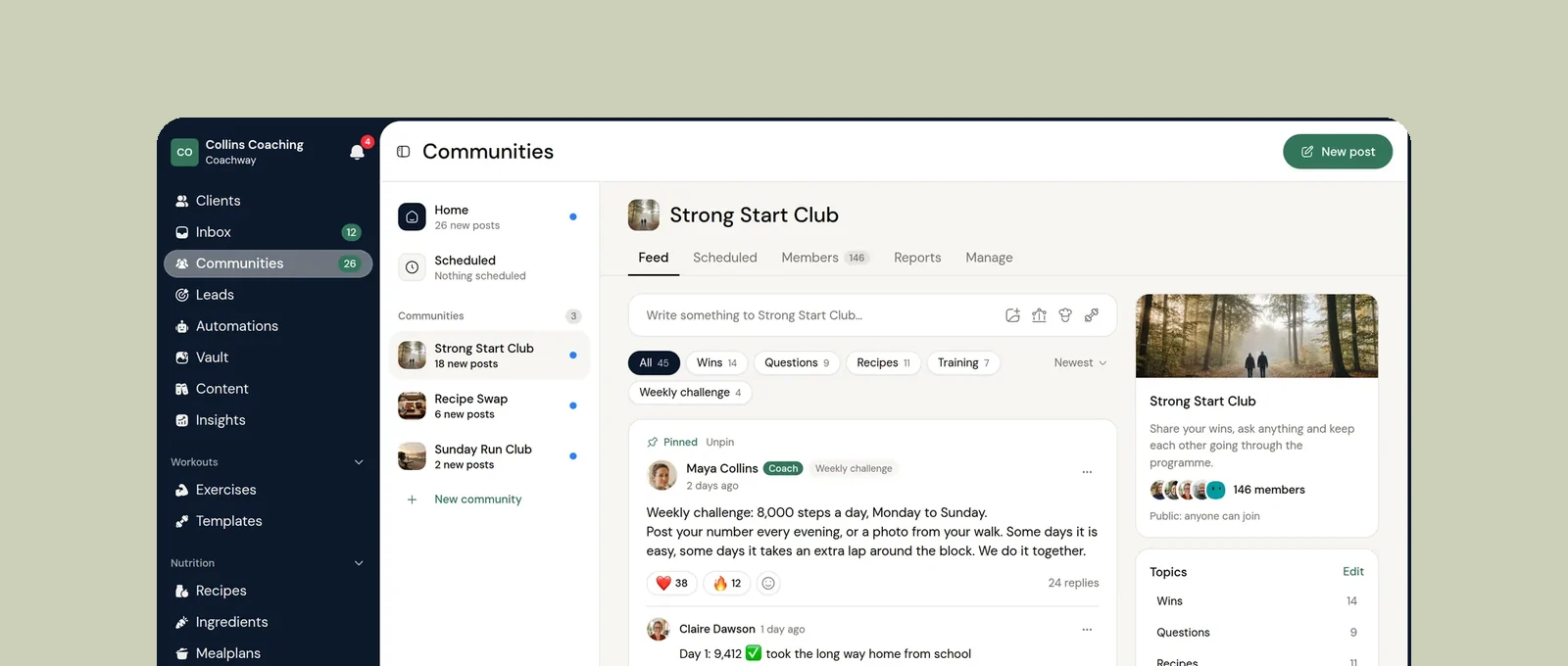
Communities
A shared feed in the client app where your clients post wins, ask questions and vote in polls.
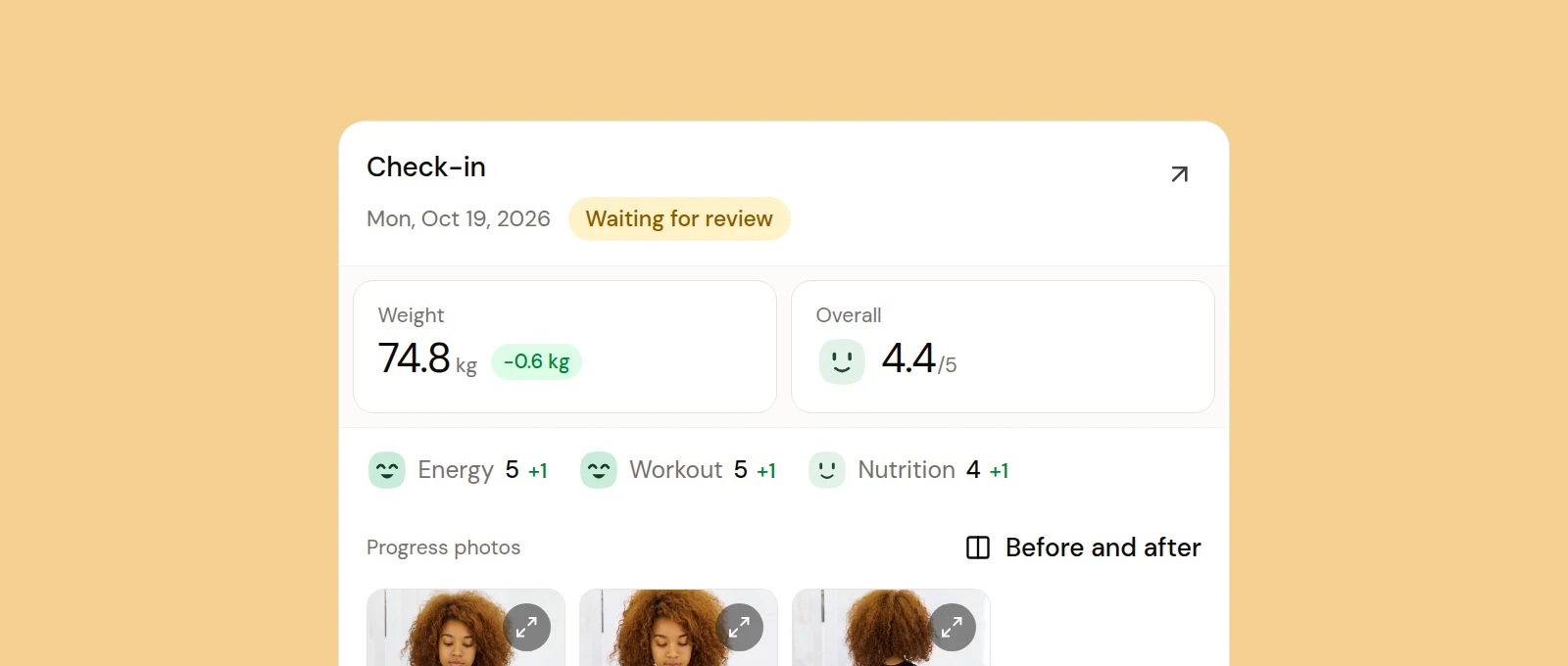
Check-ins & forms
Onboarding and weekly check-in forms you build yourself, with skips for holidays and a first check-in date.
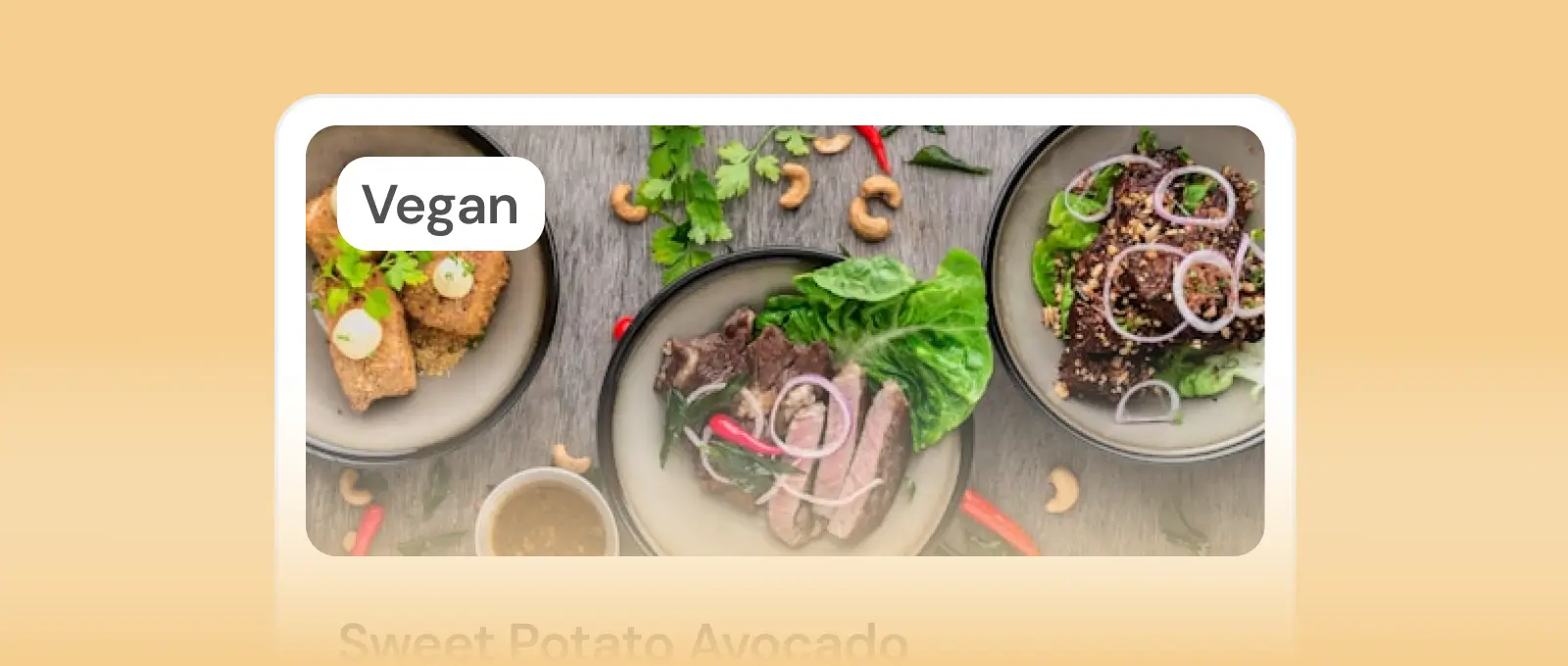
Meal planner
Build meal plans from 1,100+ recipes or your own, with every recipe scaled to the meal's calorie and macro target.
See what Coachway can do for your coaching business
Coachway was built on knowledge from working with 150 online coaches over 6+ years, who all hit the same wall - slow platforms, clunky workflows, wasted hours. Start your 14-day free trial and see what we fixed - the whole platform, no charge today, cancel anytime under Billing.