Tasks: every client follow-up, handled
A private to-do list on every client, with an overdue view across your whole client list so the personal follow-ups never slip.
In short
Clients rarely leave over one bad session - they leave when the small, personal touches quietly stop. Tasks keep those touches on your radar, for every client, every week.

On every client profile
Right beside Chat, Notes and Info
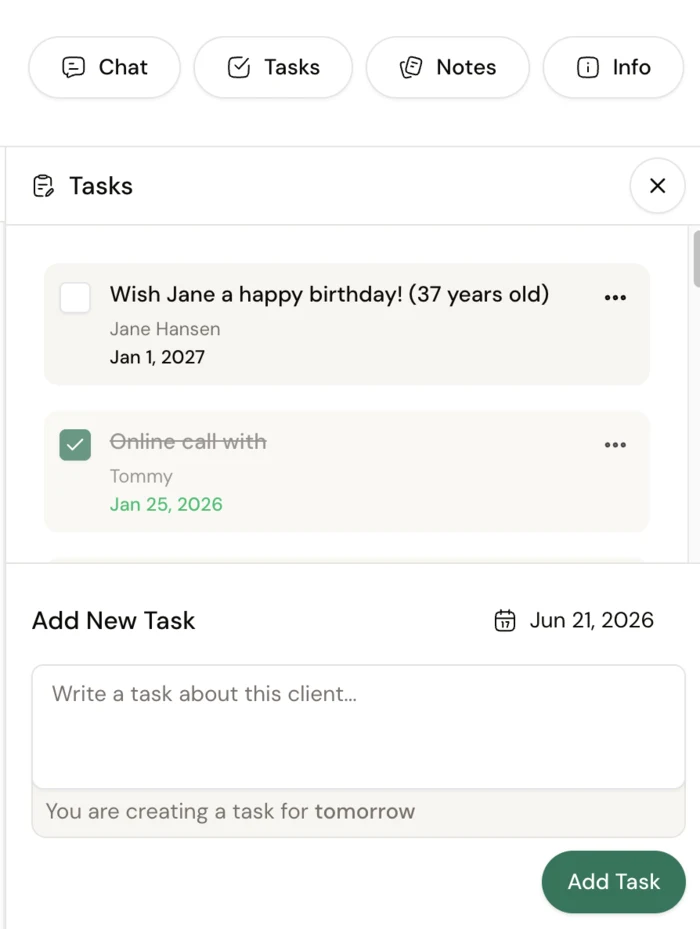
Open any client and click Tasks, right next to Chat, Notes and Info. Jot the follow-up, pick a due date - it defaults to tomorrow - and it is saved to that client. Click any task later to edit it or move the date.

Across your whole client list
Every overdue follow-up, in one view
A task turns overdue the day after its due date. The Tasks overdue filter on the Clients page gathers everything you owe across your whole client list into one list - so a follow-up never hides on a profile you have not opened this week.
Ways coaches use it
Small touches, set and forgotten
Weekly recipe refresh
A reminder to swap in fresh recipes. Two minutes of work, a lot of perceived value.
Post-check-in follow-ups
After a tough check-in, set a task to circle back later in the week.
Milestones & birthdays
Halfway points, program end dates, birthdays - small personal touches that drive retention.
New-client onboarding
A week-one checklist: confirm the onboarding form, send the welcome video, review the first check-in.
Plan reviews
A standing reminder to review and adjust macros or programming against progress, re-set each time you clear it.
Re-engage the quiet ones
A task to reach out to a client who has gone a little quiet, before they drift.
Tasks replace the back-of-mind list - and the side spreadsheet - you used to keep just to remember who needs a nudge. If you are still tracking follow-ups by hand, our guide to online coaching without spreadsheets shows how to move that admin into one place.
Everything Tasks can do
See all featuresSee Tasks on your own client list
Start your free trial with a demo client already set up, and see how coaches keep every follow-up on track.
Questions, answered
Can clients see their tasks?
No. Tasks are private to you and your team - clients never see them. They are your own coaching to-do list, not something assigned to the client.
When does a task become overdue?
The day after its due date. Until then it sits as upcoming; after that it shows as overdue so it stands out.
Can I change a due date later?
Yes. Click into any task to edit the text or move the date - handy when a client pushes a session or you want to circle back next week instead.
Do tasks send the client a reminder?
No - a task reminds you, not the client. For messages that send themselves to clients, use Automations or a Broadcast instead.
How do I see what is due across all clients?
Open the "Tasks overdue" filter on the Clients page - it gathers every overdue task across your whole client list into one list. Each client profile also has its own Tasks panel showing only their tasks.
Will Coachway remind me when a task is due?
Tasks do not send you a push - they wait in each client's Tasks panel and roll up into the "Tasks overdue" filter on the Clients page, which is where you review what is due. Make checking it part of your weekly routine.
What happens when I mark a task done?
It clears from the open list and the overdue filter - done is just done, nothing to archive or manage afterward.
Do tasks repeat automatically?
Not on their own - a task is a single reminder with a due date. For a standing nudge you re-add it once you clear it, or set up an Automation for anything that should reach the client on a schedule.
Articles & guides
all guidesExercises for Deconditioned Clients: A Coach's Guide (2026)
Deconditioned describes lost fitness, not body size. A non-humiliating first-session assessment, an entry-to-progression exercise table across eight movement patterns, RPE-capped programming, and the medical-clearance line every coach holds.
Read the guideWhat Is an EMOM Workout? Meaning, Example and How It Works
EMOM means Every Minute On the Minute: start the work at the top of each minute and rest with whatever time is left. A worked 12-minute example, the EMOM vs AMRAP vs For Time comparison, and how coaches program it without the rest disappearing.
Read the guideSetting Boundaries with Online Coaching Clients (2026 Guide)
The boundary set that keeps online coaches from burning out: response-time windows, channel and scope rules stated at onboarding, a weekend and vacation protocol, and six copy-paste scripts to enforce them kindly.
Read the guideKeep exploring
Explore more features
Client progress
Track workouts, milestones, and personal bests with clear dashboards that show improvement over time.

Meal planner
Create tailored nutrition plans that align with client goals, complete with smart suggestions and easy adjustments.
Check-ins & forms
Collect feedback, assess readiness, and stay connected with customizable forms and quick check-ins.
See what Coachway can do for your coaching business
Coachway was built on knowledge from working with 150 online coaches over 6+ years, who all hit the same wall - slow platforms, clunky workflows, wasted hours. Start your 14-day free trial and see what we fixed - the whole platform, no charge today, cancel anytime under Billing.